Step 3 - Configuring Company Field Mappings
Last updated: May 4, 2026
This article walks through configuring field mappings for the Company object in SmartHub. Always configure Companies first. Contacts and opportunities can only sync to ConnectWise when they're attached to a synced company, so getting the company configuration right unlocks the rest of the integration.
The mechanics described here — the field mapping table, sync direction controls, system of record, and the "create new property" flow — are the same for every other object pair (Contacts, Deals, Products, Line Items, Activities). The object-specific articles that follow this one only cover what's different for that object.
Before you start
Confirm you have:
Completed A3 — Connect HubSpot and ConnectWise in SmartHub and can see the object pairs on your ConnectWise + HubSpot configuration page
Your system-of-record decisions for Companies from A1 — Prerequisites written down
1. Open the Company configuration
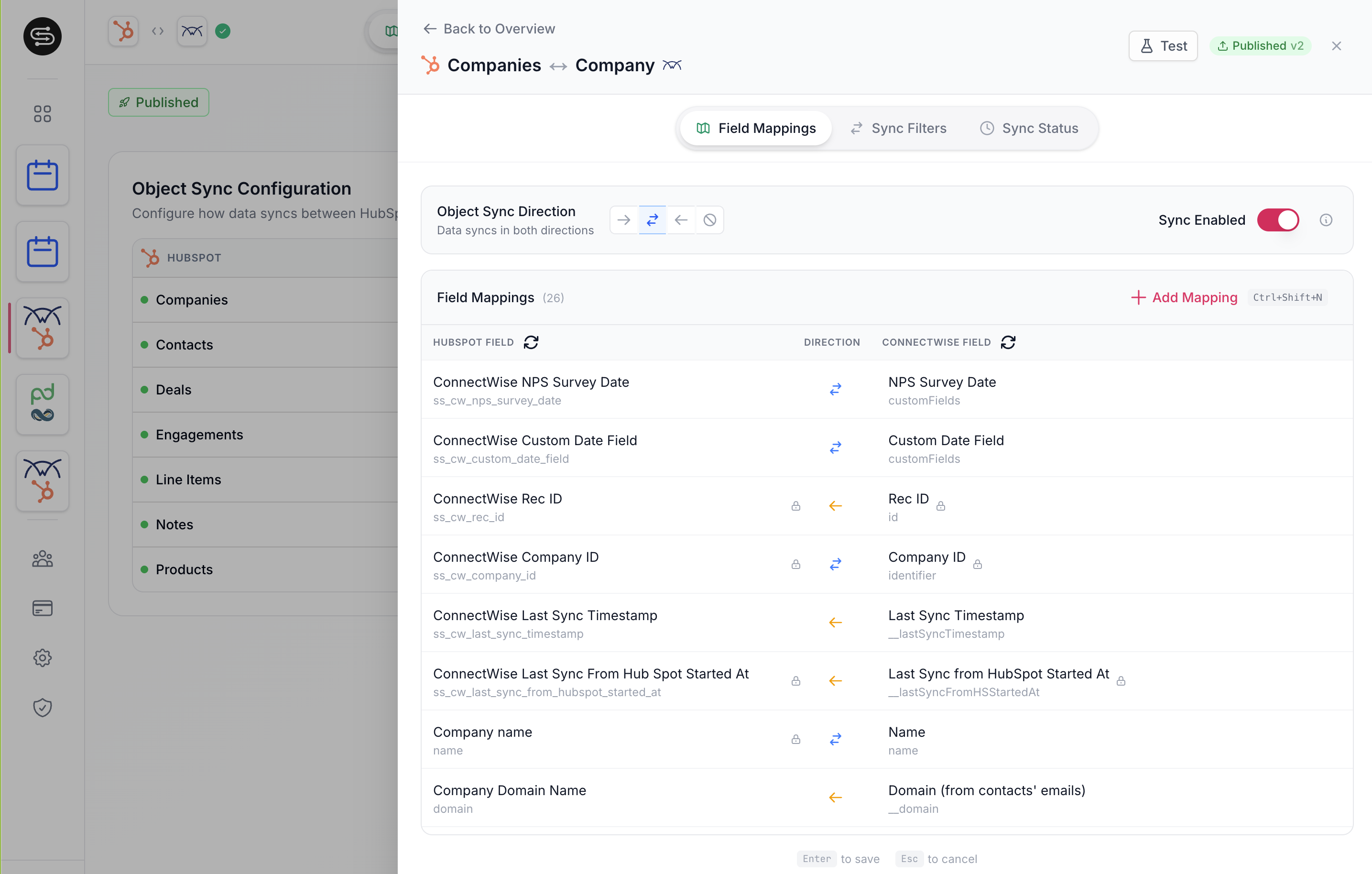
From the ConnectWise + HubSpot page in SmartHub, open the Company tool, then open the Field Mappings tool inside it.
2. Set the object sync direction
At the top of the Field Mappings tool you'll find the Object Sync Direction control. This is the master toggle for what direction data is allowed to sync on this object.
ConnectWise to HubSpot only — data and properties only update from ConnectWise to HubSpot. Bi-directional field mappings flow only in that direction. Mappings set to "HubSpot to ConnectWise" won't sync at all.
HubSpot to ConnectWise only — the inverse. Bi-directional mappings flow only HubSpot → ConnectWise, and "ConnectWise to HubSpot" mappings won't sync at all.
Bi-directional — field-level direction controls apply.
The object sync direction overrides the per-field direction. Use it when you want to run the object one-way for a period of time without rewriting every individual mapping.
There is also a separate toggle to enable or disable the sync for this object entirely.

3. Read the field mappings table
Each row in the Field Mappings table is a single field-to-field mapping. The columns are:
HubSpot Field (left) — the property on the HubSpot Company object
Direction (middle) — which way this field syncs
ConnectWise Field (right) — the field on the ConnectWise Company record
The left side will always represent your HubSpot properties, the right side will always represent your ConnectWise properties, and the direction column shows which way you've mapped the data.
Refreshing field metadata
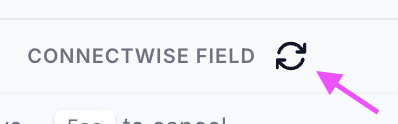
If you create a new property in ConnectWise or HubSpot while you're configuring, click the refresh button on the Field Mappings tool. SmartHub re-pulls the metadata from both systems and the new field will appear in the field pickers.
4. Add a field mapping
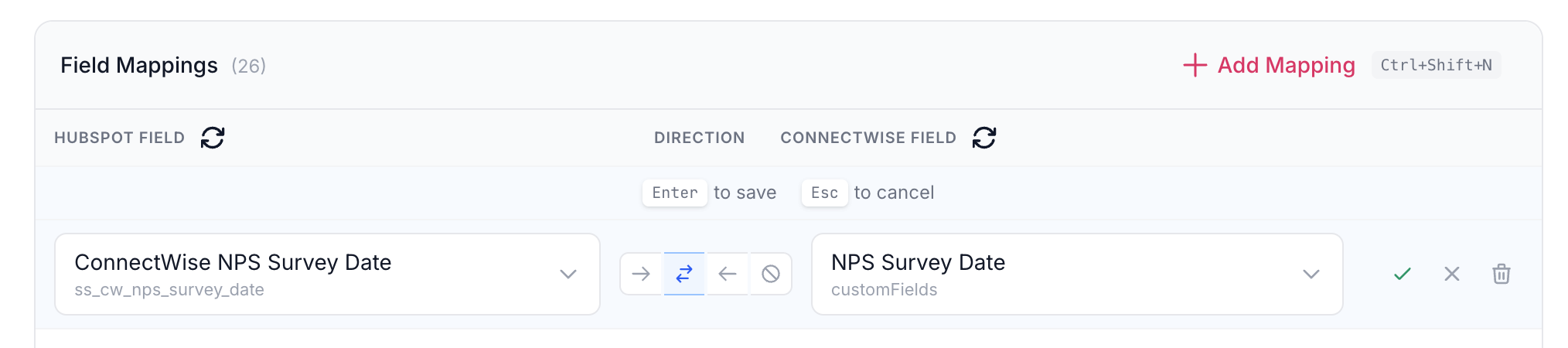
Click Add Mapping. A new empty row appears in the table.
Pick a HubSpot field. Use the dropdown on the left. SmartHub supports custom HubSpot properties — they appear in the picker labeled as "custom field."
Pick a ConnectWise field. Use the dropdown on the right. Custom ConnectWise fields are also supported and appear labeled as "custom field" in the picker.
Set the direction. Choose
Bi-directional,HubSpot → ConnectWise, orConnectWise → HubSpotfor this specific row.

5. Set system of record for bi-directional mappings
When a row is set to bi-directional, open the row tools on the right side of that row. The most important option here is System of Record, which controls who wins on this specific field if the value changes in both systems between syncs.
There are two options:
Last Modified Wins (default) — anytime data is updated in either system, that update syncs to the mapped field in the other system.
ConnectWise Always Wins — if a value is known in ConnectWise, it won't be updated even if the data changes in HubSpot.
Use ConnectWise Always Wins to protect a field in ConnectWise when your accounting or services teams work off the ConnectWise record and you don't want the integration to overwrite their data. A common example is phone number: if your service team keeps the most reliable phone number on the company in ConnectWise, set phone number to ConnectWise Always Wins so a HubSpot update can't overwrite it.
If you want HubSpot to be able to change the value in ConnectWise, leave it on Last Modified Wins.
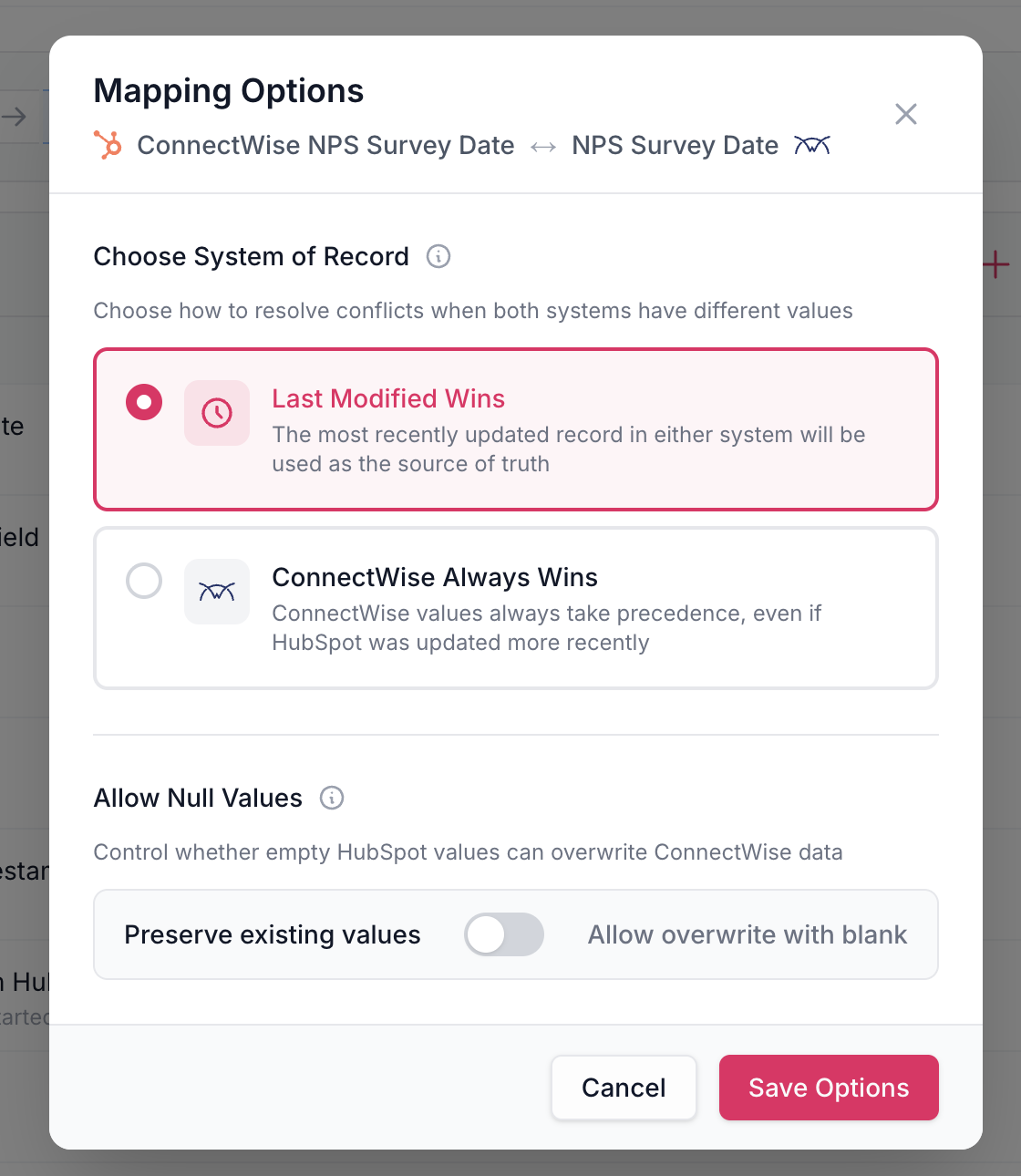
System of Record is only meaningful for bi-directional mappings. For one-way mappings, the direction itself dictates who can write.
6. Delete a mapping
To remove a row, click the trash icon on that row. The row is removed from the configuration.
Some rows have a lock icon instead of a trash icon. These are required field mappings that the integration depends on internally — you cannot delete them. If a row shows a lock icon, leave it in place.

7. Map a field that doesn't exist in HubSpot yet
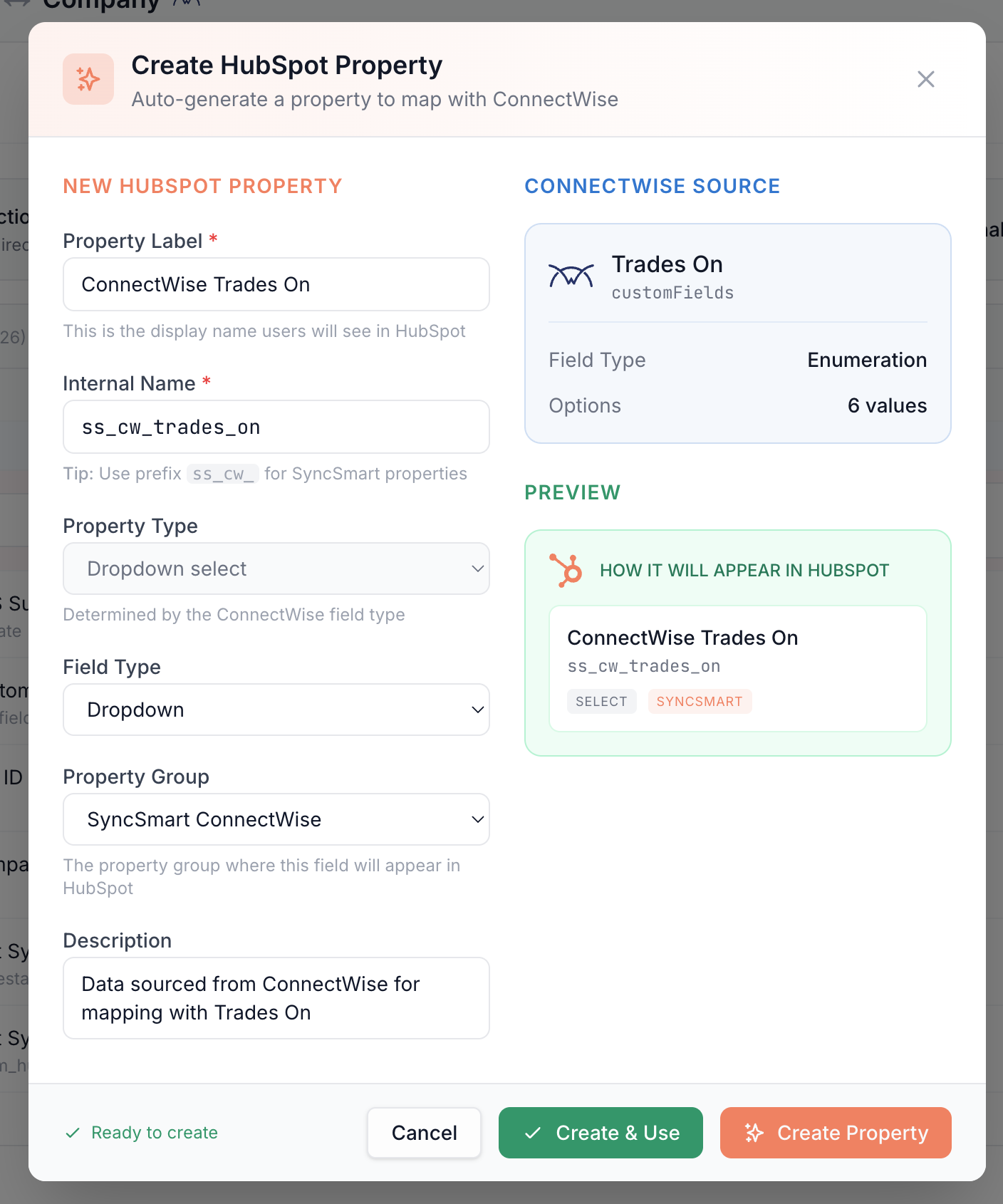
Custom ConnectWise fields often don't have a matching HubSpot property. SmartHub can create the HubSpot property for you from the field mapping screen.
Add a mapping and pick the ConnectWise custom field on the right
Search for the equivalent on the HubSpot side. If nothing matches, click Create New Property
SmartHub reads the field type from ConnectWise and prepares a matching HubSpot property — same name, same type. If it's a dropdown, the dropdown values come along too.
Click Create and Use. SmartHub creates the property in HubSpot directly from this screen, then drops it into the row so you can save the mapping.
The new HubSpot property is created via the integration as if you'd built it in HubSpot yourself — it's available everywhere HubSpot properties are available.
What's next
Once your Company field mappings reflect your direction and system-of-record decisions, move on to A5 — Configure Company Sync Filters. It's important to configure filters before you run matching, so that matching only reviews companies that will actually sync.
When to contact support
A ConnectWise custom field does not appear in the field picker even after clicking the refresh button, and you've confirmed the ConnectWise Security Role has the right access
You want to remove a row that has a lock icon
You're not sure whether to use ConnectWise Always Wins or Last Modified Wins on a particular field
Previous: A3 — Connect HubSpot and ConnectWise in SmartHub