Step 4 — Configure Company Sync Filters
Last updated: May 4, 2026
Sync filters are a crucial part of your integration architecture. They control the flow of data between ConnectWise and HubSpot by deciding which records qualify to sync and which don't. Configure them carefully — getting the filters right means only the records you actually care about move between systems.
Each direction has its own filter mechanism: ConnectWise → HubSpot uses a filter builder inside SmartHub, and HubSpot → ConnectWise uses a HubSpot list (segment) that you build in HubSpot itself. Both directions are configured per object. This article walks through Companies; the same logic applies to Contacts and Deals (covered in their own articles).
Before you start
Confirm you have:
Completed A4 — Configure Company Field Mappings and set the object sync direction to match what you want
A rough idea of which companies you actually want to sync in each direction
1. Open the Sync Filters tool
From the ConnectWise + HubSpot page in SmartHub, click into the Company object, then navigate to Sync Filters. You'll see two sub-tools:
HubSpot to ConnectWise
ConnectWise to HubSpot
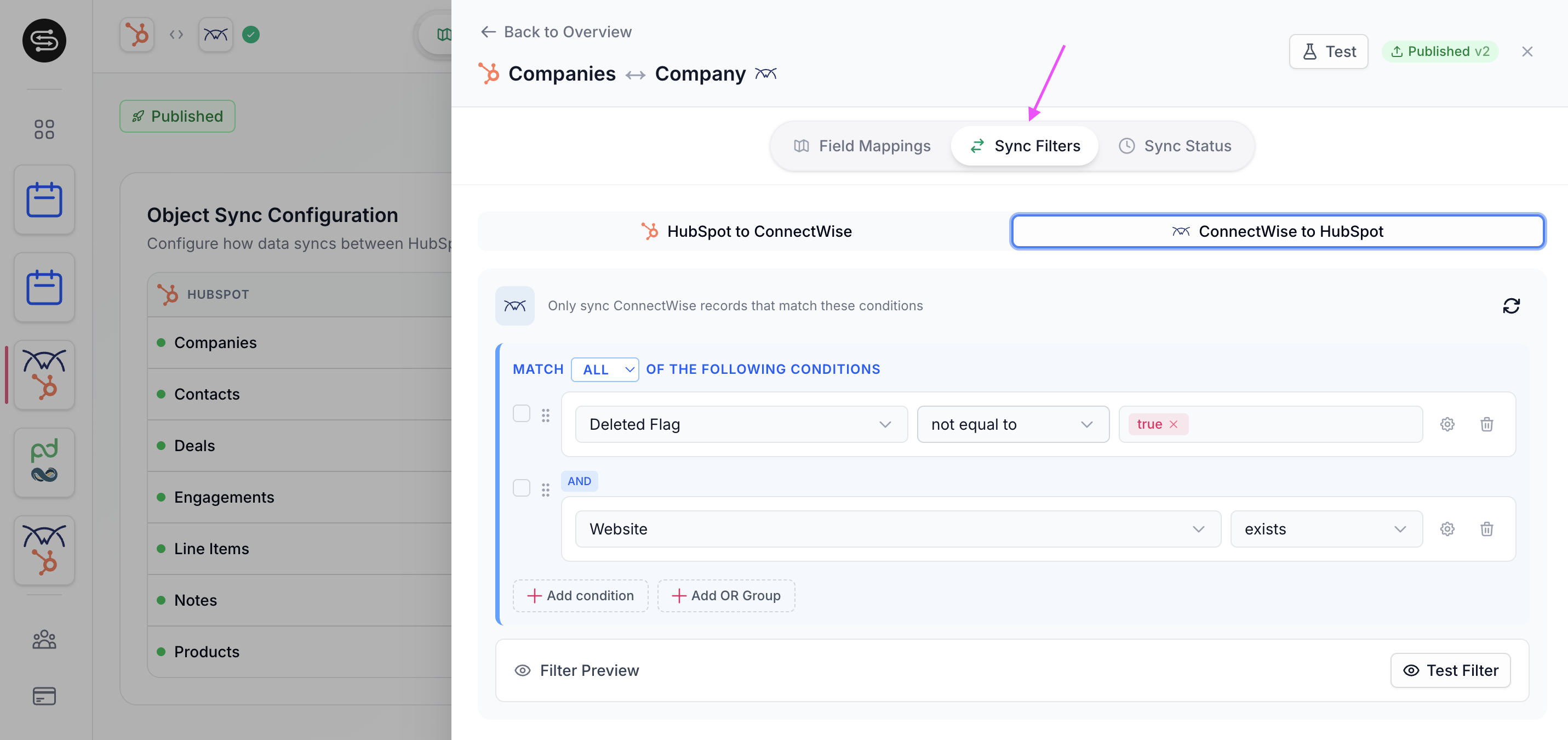
The two filters are independent. A company that passes the ConnectWise → HubSpot filter syncs in that direction. A company that qualifies for the HubSpot → ConnectWise inclusion list syncs in that direction. The two are configured separately.
2. ConnectWise to HubSpot filter
Open the ConnectWise to HubSpot tool. This is where you define which ConnectWise companies are eligible to flow into HubSpot.
Build a condition
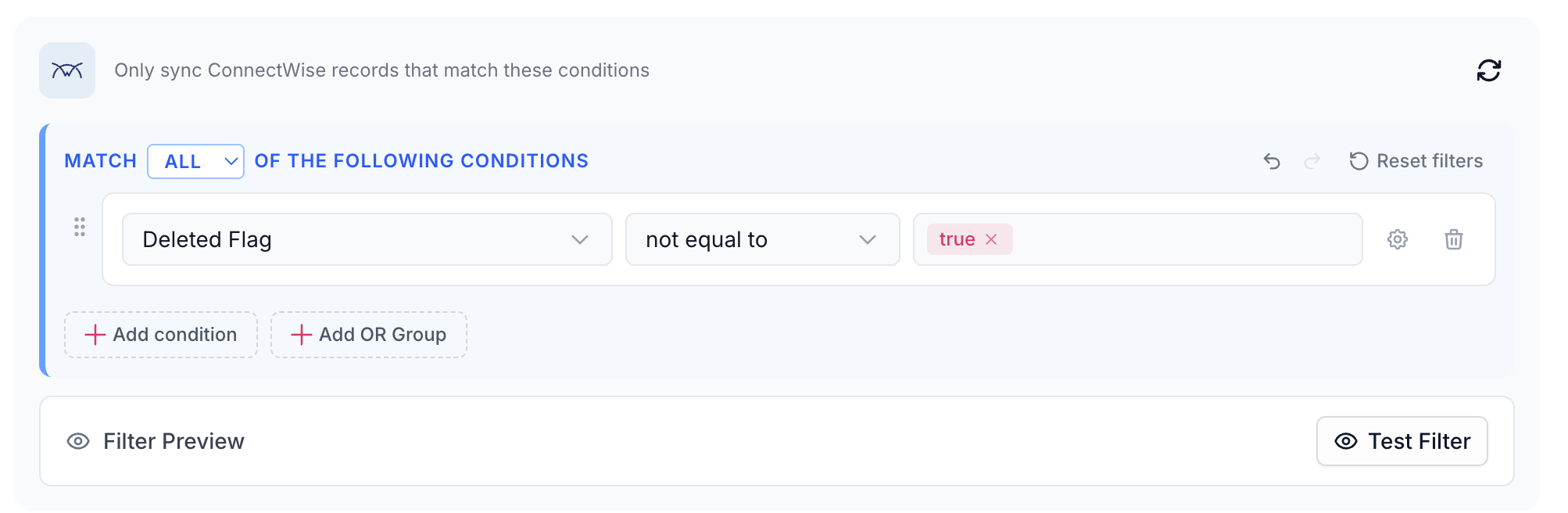
Pick a property from the ConnectWise field picker, choose a qualifier, and set a value. All ConnectWise fields available in the field mapping tool — including custom fields of every type — are available here.
A common starting condition is to exclude deleted records by setting the deleted flag's qualifier to "not equal"=true.
Test the filter
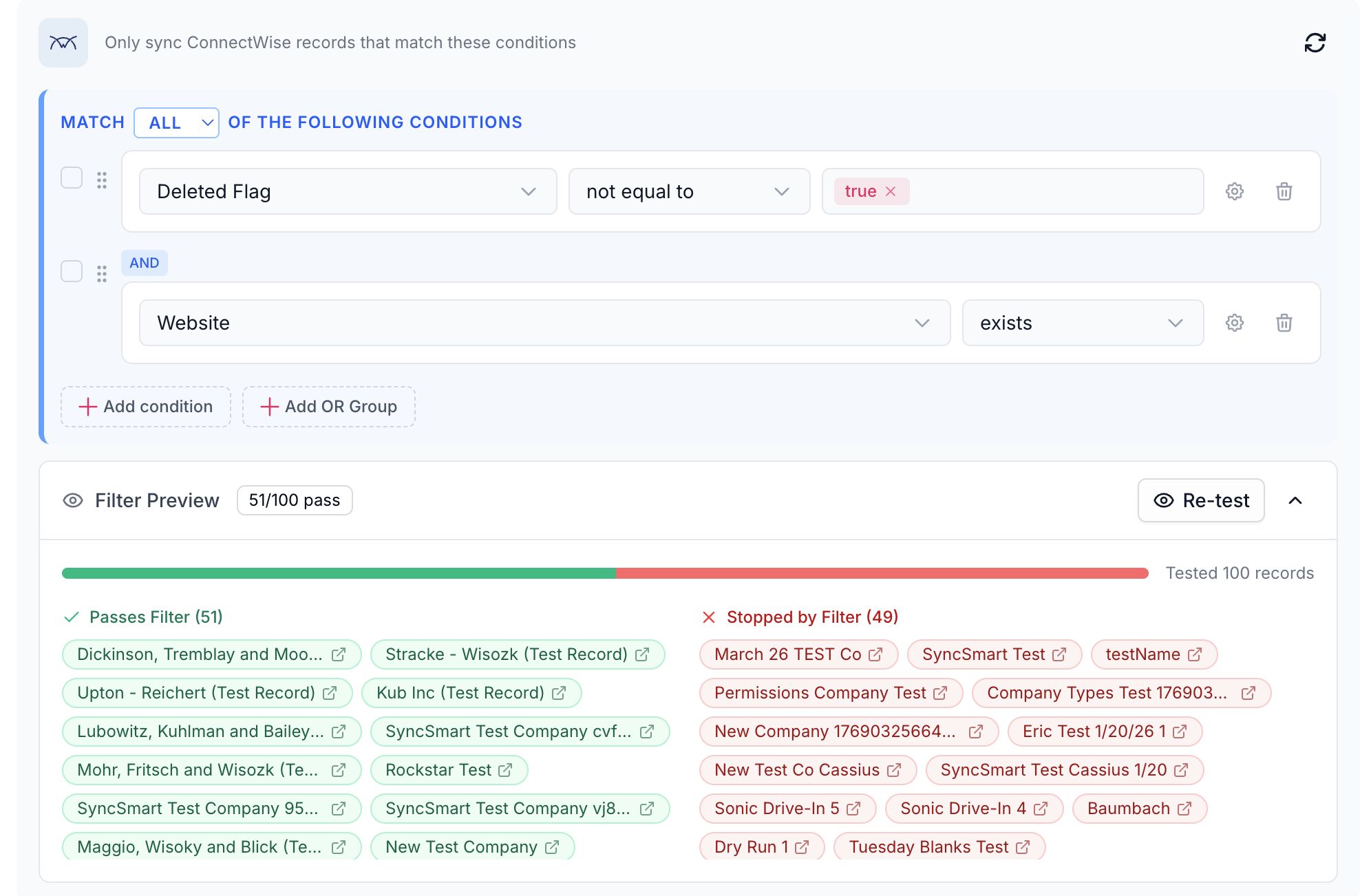
Click the Test Filter button. SmartHub pulls a sample of 100 records from ConnectWise and shows you which records pass the filter and which don't. Use this as you build to confirm the filter is doing what you expect.
Combine conditions
You can layer additional conditions to narrow the set further. For example, you can require the company domain name to have a value of any kind. With this added, the test filter typically returns fewer records, because the filter is more restrictive.
Use OR groups for more inclusive logic
To express alternatives, create an OR group. For example: include companies where the domain has a value, or the billing terms have a value. When you re-test, you'll usually see more records returned because the filter is more inclusive.
You can also flip the top-level matcher between All (every condition must be met) and Any (any condition is enough). Switching to Any applies the filter more flexibly and usually returns more records.
Use these modifiers — combined conditions, OR groups, and the All/Any matcher — to express whatever filter logic you need. Use Test Filter to validate as you go.
3. Sync a test record (CW → HS)
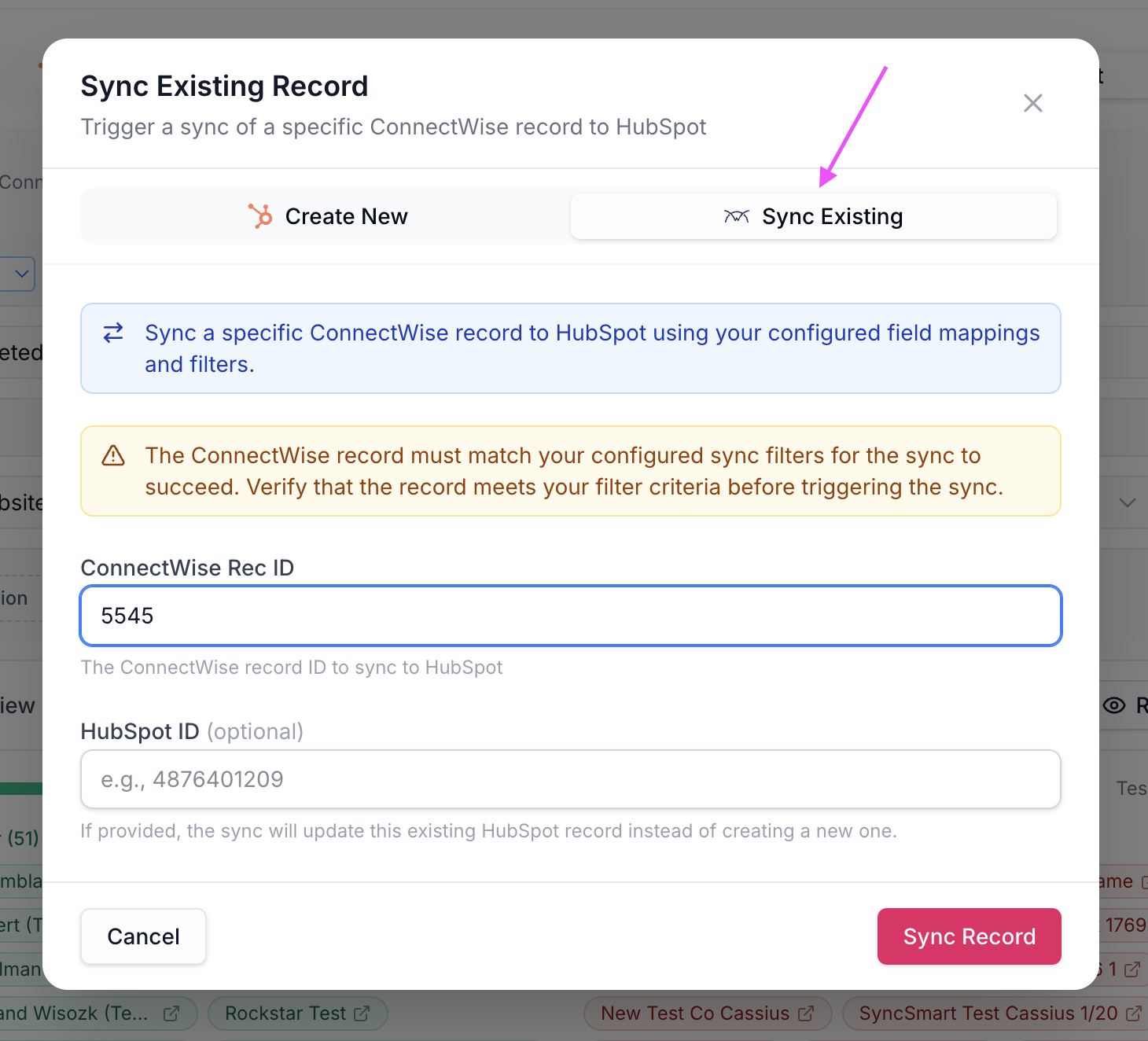
The ConnectWise to HubSpot tool also lets you push a single ConnectWise record through your draft configuration so you can verify the result in HubSpot before deploying.
Pull an existing record's ConnectWise Rec ID from ConnectWise
Enter the Rec ID in the test record area
Click Sync Record
If the Rec ID is valid, SmartHub pushes that record to HubSpot using the field mappings and sync filter rules you have currently drafted.
Drafts vs. deployed configuration
All integration changes exist in a draft state until you click the Deploy button. The test record tool runs against your draft, so you can validate real data in real HubSpot without affecting your live integration. Deploying your draft is covered in its own article.
4. HubSpot to ConnectWise filter
The HubSpot side works differently. Instead of a SmartHub-native filter builder, the HubSpot to ConnectWise direction is controlled by a HubSpot list (segment) that you build inside HubSpot. This gives you the full power of HubSpot's segmentation tool to decide which companies are eligible to push to ConnectWise.
Create the inclusion list
Open the HubSpot to ConnectWise tool inside Sync Filters
Use the HubSpot tool surfaced here to define the segment that should drive your sync — this is your inclusion list
Click Save Changes
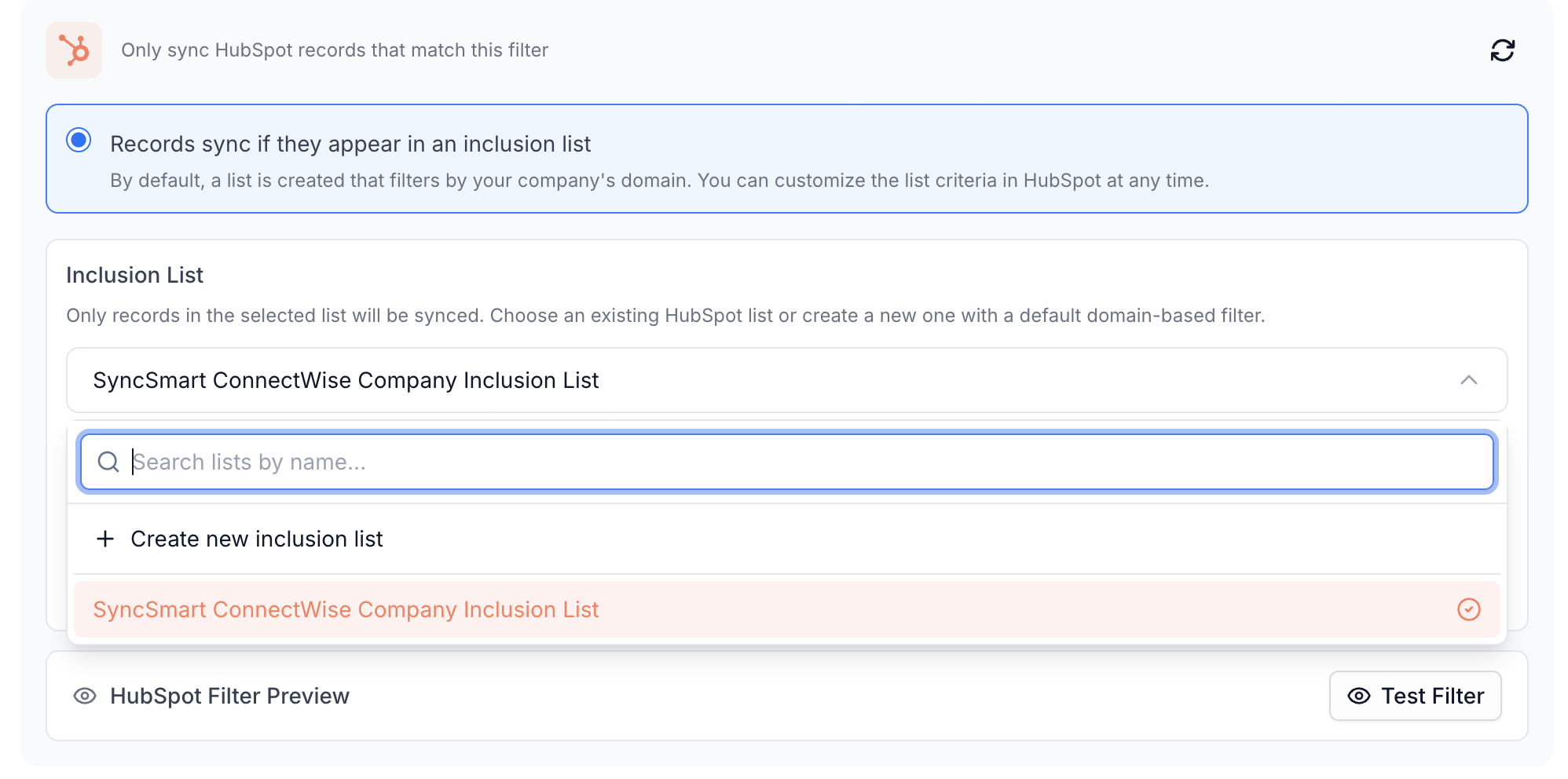
When you save, the integration processes the change and creates the list for you in HubSpot. Once it exists, you can select it in SmartHub and click the hyperlink to jump directly to the list in HubSpot.
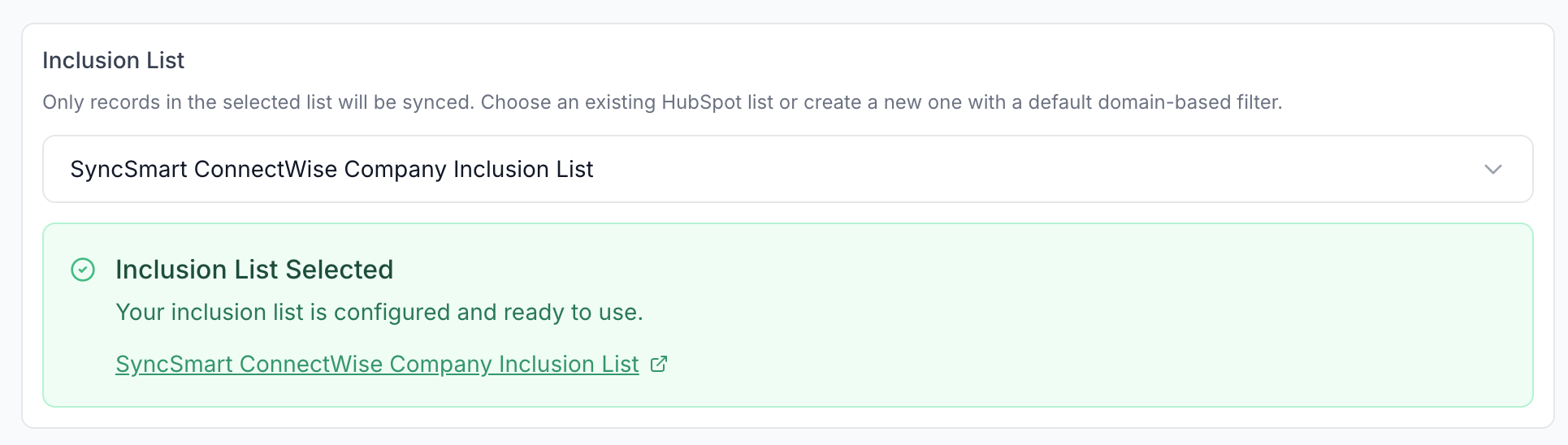
Edit the list in HubSpot
Inside HubSpot's list editor you have the same modifiers as the ConnectWise side, plus the rest of HubSpot's segmentation options:
AND filtering — all conditions must match (more restrictive — fewer companies)
OR filtering — any condition can match (more inclusive — more companies)
Separate filter groups — combine multiple criteria into independent groups
As you adjust the criteria, HubSpot recalculates list membership in real time. In the video, swapping a single condition takes a list from 170 companies to 284, and a permissive condition like "phone number is known" takes it as high as 8,000.
Tune the list to match the companies you actually want to push to ConnectWise.
What happens when a company falls out of the list
If a company was previously in the inclusion list and is no longer in it (because its properties changed and it no longer matches), the integration does nothing to it. The company stops being eligible for new HubSpot → ConnectWise updates, but SmartHub does not unsync it, freeze it, or alter the existing record in ConnectWise.
5. The "[AUTOMATED]" companion list — do not touch
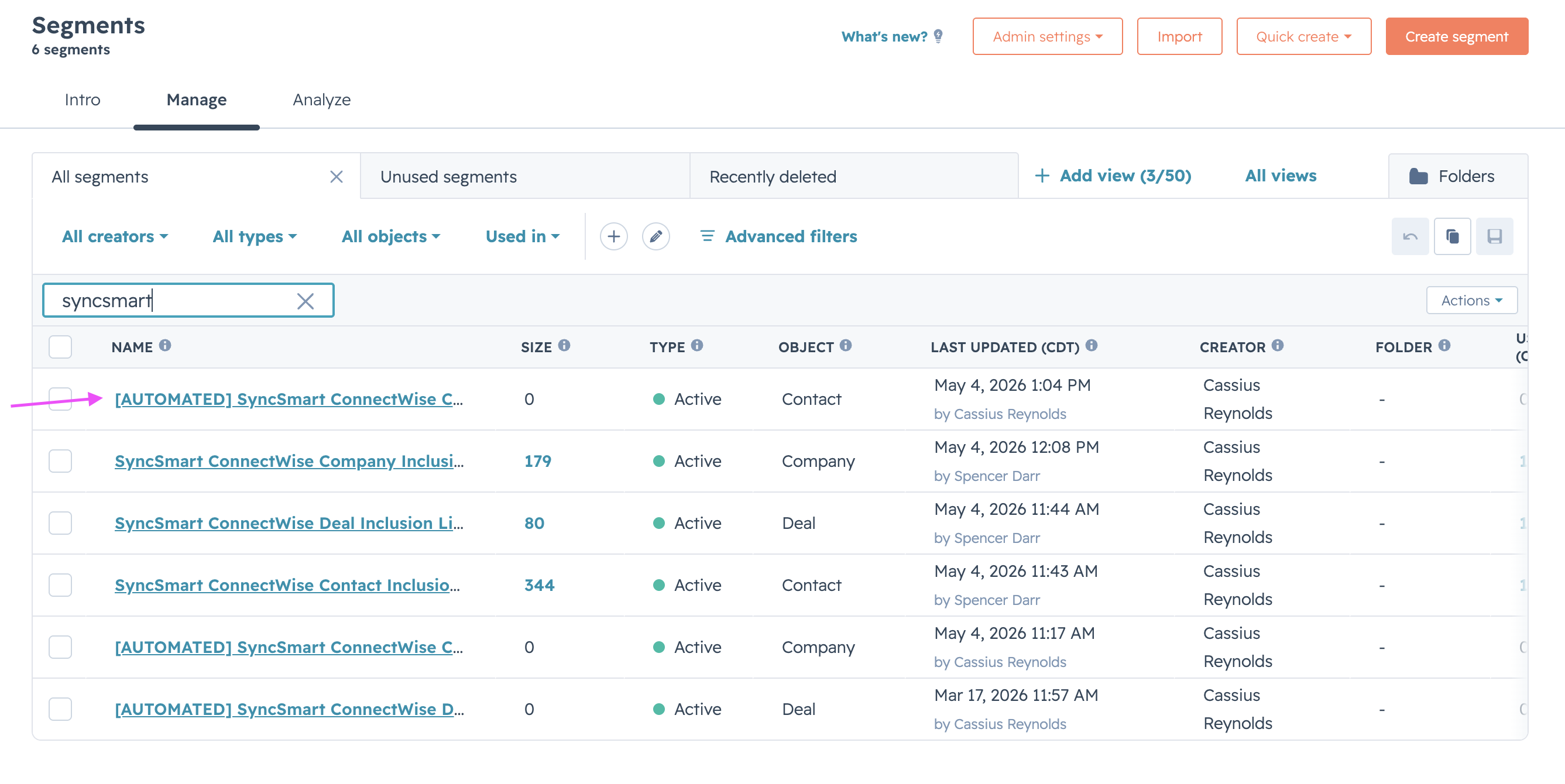
When the integration creates your inclusion list, it also creates a second list in HubSpot that takes the name of your inclusion list with [AUTOMATED] appended. This automated list queues up records from your inclusion list that have been updated within the last 5 minutes, so the integration knows what to push next.
This list is completely managed by the integration. Never edit its filter criteria, and never add or remove members manually. Doing so can create unintended sync behavior. Treat it as an internal queue you can see but should not modify.
6. Same logic for Contacts and Deals
Contacts and Deals use the same Sync Filters tool with the same two-direction model — a SmartHub filter builder for ConnectWise → HubSpot, and a HubSpot list for HubSpot → ConnectWise. The differences specific to those objects are covered in A9 — Configure Contacts and A10 — Configure Deals.
What's next
When your Company sync filters look right in both directions, move on to A6 — Run Company Matching. Configuring filters before matching matters: matching only needs to review companies that will actually sync, so a tighter filter means a shorter and more useful matching queue.
When to contact support
The Test Filter results don't match what you'd expect for the conditions you've set
The [AUTOMATED] companion list was modified accidentally and you're not sure how to restore it cleanly
Saving an inclusion list in the HubSpot to ConnectWise tool doesn't produce the corresponding list in HubSpot
Previous: A4 — Configure Company Field Mappings Next: A6 — Run Company Matching