Versions, Updates, and Deployments
Last updated: May 4, 2026
SmartHub is built so you can stage configuration changes, test them against real data, and only push them to your live integration when you're ready. This article explains how that draft → test → deploy flow works and how to read the indicators that tell you whether your configuration is live.
[Video: Versions, updates, and deployments — uploaded to Pylon]
The lifecycle of a change
Every configuration change in SmartHub — adding a field mapping, updating a sync filter, adjusting a system of record, anything — moves through three states:
Draft. As soon as you save a change inside an object's tools, it lives in a draft state. Drafts do not affect your live integration. Your live sync continues to run with whatever was last deployed.
Tested. Use the test tools (such as the Sync Record tool inside the ConnectWise → HubSpot sync filter, covered in A5, and the test record tool covered in A7) to push individual records through your draft configuration and verify the result before deploying. This lets you see exactly how your new settings will affect the integration on real data.
Deployed. When you're confident the changes are correct, click Deploy. SmartHub publishes the draft to your live sync. From that point forward, the new configuration is what runs against incoming changes from both systems.
The benefit of this lifecycle is that you can iterate freely on your configuration without risking the live integration — try, test, adjust, retest, and only commit when it's right.
Reviewing changes before you deploy
Before deploying, review what's actually in the draft. SmartHub shows the recent updates that are queued for deployment, and you can scroll back over longer time spans — recent activity, or further back over months — to see the full history of changes.
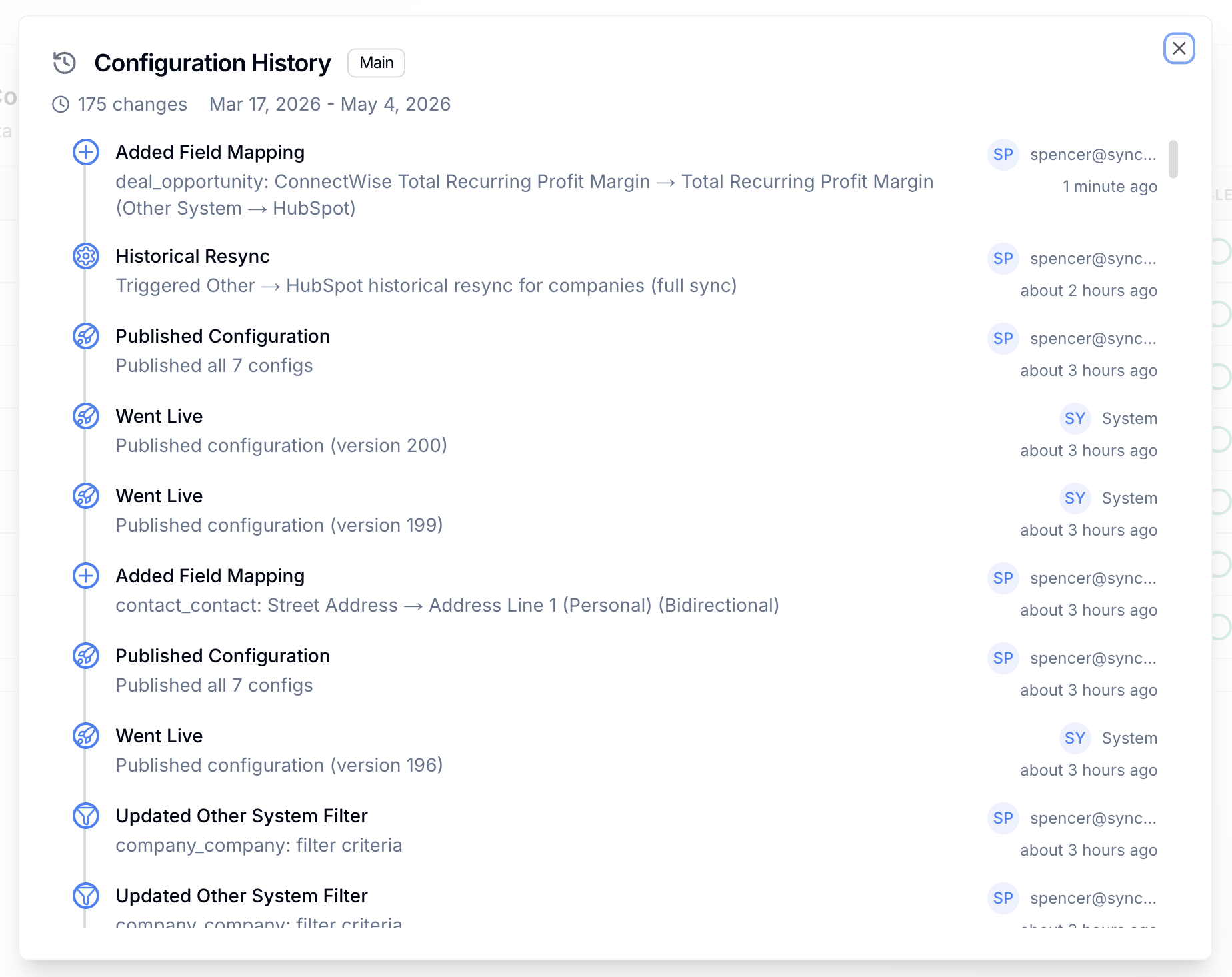
Use this review step to confirm you're shipping what you intended. It's especially useful when multiple admins have been editing the configuration, or when you've been iterating over several sessions and want a single summary before pushing live.
Deploying
When the changes look right, click Deploy. SmartHub pushes the draft out to the live sync and the new configuration becomes active.
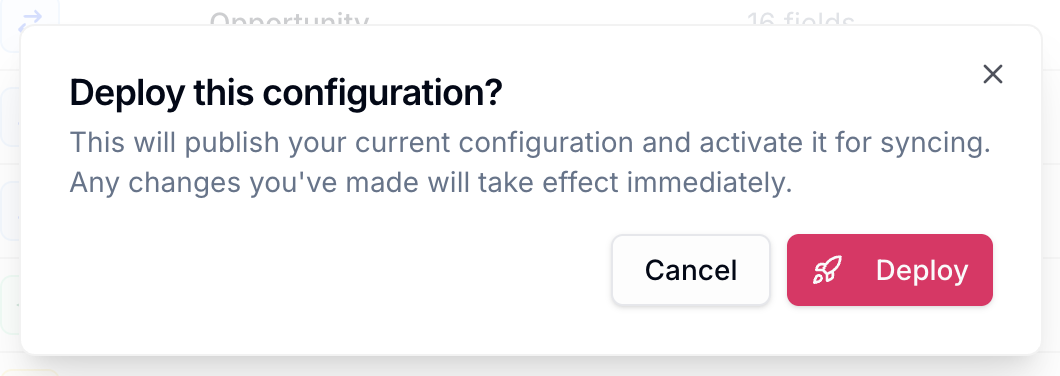
How to tell if your changes are live
SmartHub uses two visual cues:
Orange bullet — your draft contains changes that have not yet been deployed. The integration is running an older configuration than what's on screen.
"Live" indicator — after a successful deployment, a "Live" indicator appears (in both the object view and the deployment view) and the orange bullet resolves. This confirms the live integration is running the configuration you just deployed.
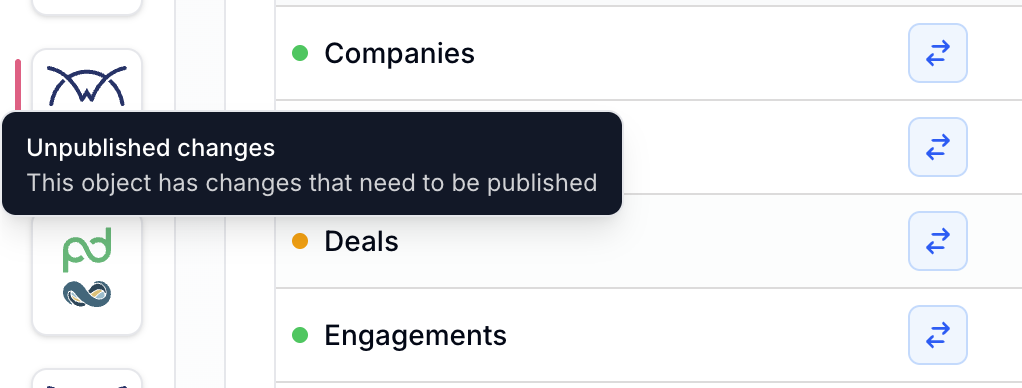
If you've made changes and the orange indicator is still showing, your changes are still in draft and have not been published.
Practical tips
Test before you deploy. The test tools exist specifically so you don't have to deploy to see how a change will behave. Use them for any non-trivial change — new field mappings, filter changes, system-of-record changes — before pushing live.
Bundle related changes. If you're configuring a new object end-to-end (field mappings, filters, matching), it's often cleaner to deploy the full set together once you've tested it, rather than deploying piecemeal.
Watch the indicators. If you make a change and forget to deploy, the orange bullet is your reminder. Don't assume a saved change is a live change until the Live indicator appears.
When to contact support
You deployed a change and the orange bullet did not resolve to a Live indicator after a reasonable wait
The behavior you're seeing in the live sync doesn't match what you tested in the draft, even after a successful deployment
You need to revert to a prior configuration and aren't sure how to safely do so