Step 7 — Run the Company Historical Sync
Last updated: May 4, 2026
Historical sync is the step that brings your ConnectWise companies into HubSpot in bulk, completing the process of joining the two databases. If you're following this series as a new customer, this is the step you take after you've configured field mappings, sync filters, and company matching.
You'll also come back to this tool later if you add a new property to one of your object mappings, or need to pull in more historical data than you originally fetched.
Before you start
Confirm you have:
Completed A4 — Company Field Mappings, A5 — Company Sync Filters, and A6 — Company Matching
Spot-checked the configuration with a test record (covered in A7 — Use the Test Tool to Preview Sync Behavior)
1. Open the Sync Status tool
From the ConnectWise + HubSpot page in SmartHub, select the Company object, then navigate to Sync Status and click the Resync button.
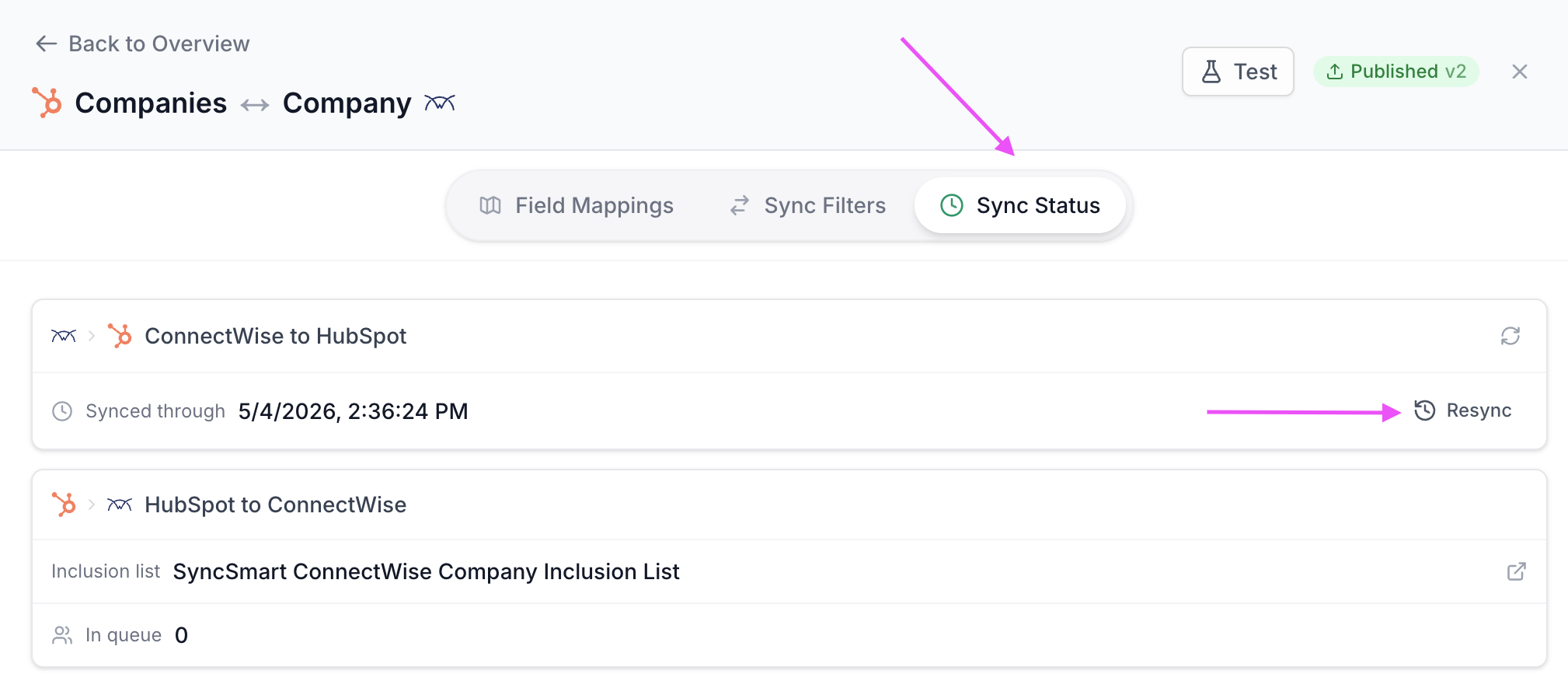
2. Choose what to resync
By default, the resync tool selects the object you navigated from — Companies, in this case. You can also select more than one object in the same run if you want to queue several at once.
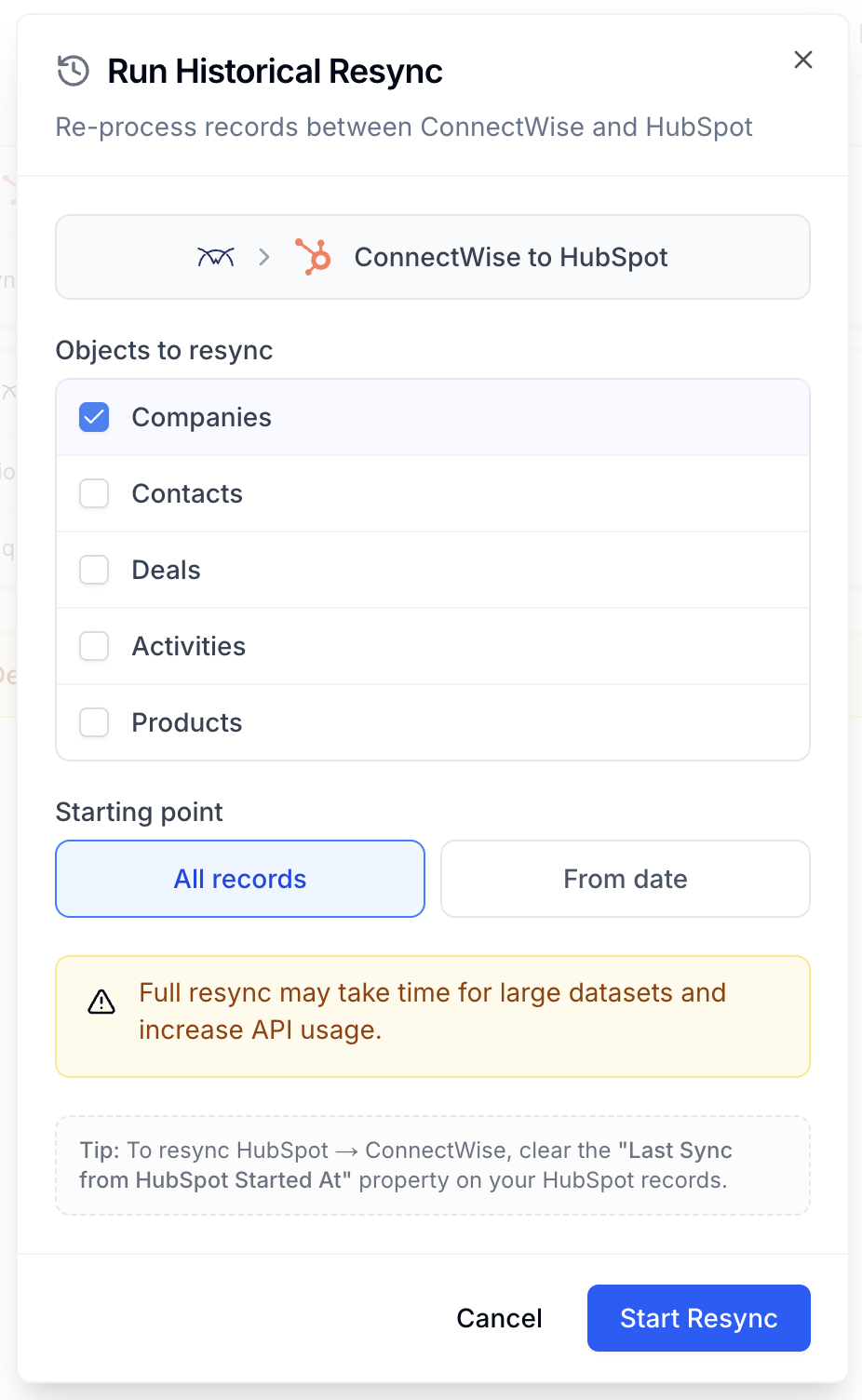
Choose the time range
You have two options for how far back to look:
Sync all records — the integration sets a date very far in the past so every record in your database is captured. Use this when you want a complete one-time backfill.
From date — only records created or modified since the date you set are included. Use this to be conscious of the volume of data you're moving. If your company has used ConnectWise for many years, you probably don't want every record from inception to come into HubSpot — picking a "from date" lets you set the starting point at a few days, a few months, or a few years back.
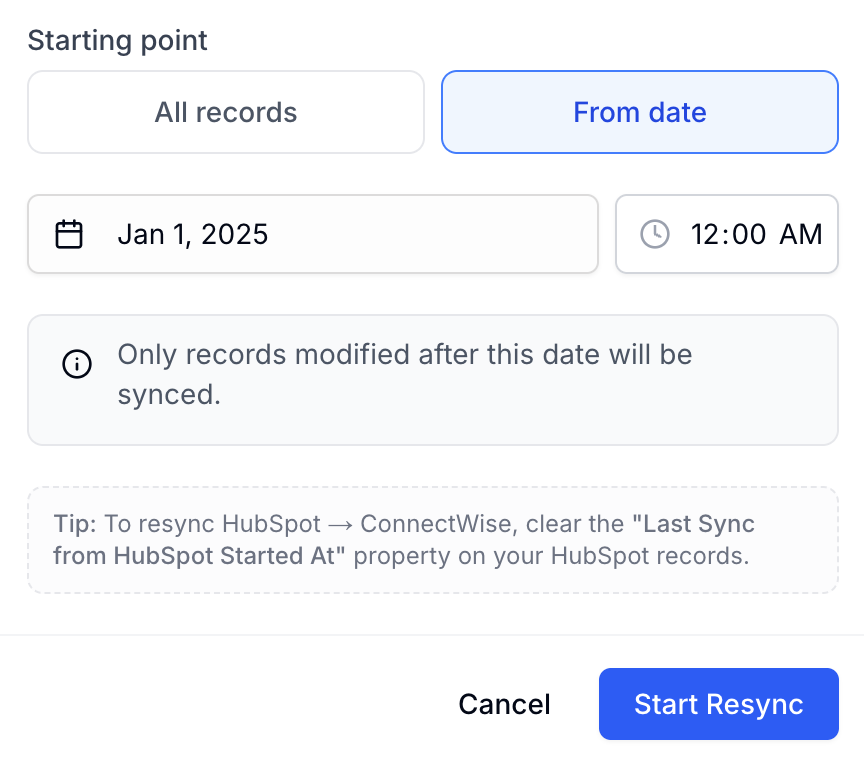
When you're ready, click Start Resync.
3. Watch the resync progress
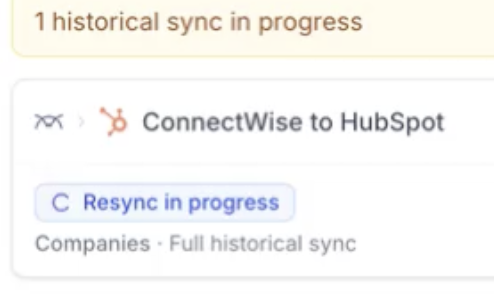
When you kick off the resync, the status moves through two states:
Resync pending — the resync has been queued but processing has not started yet
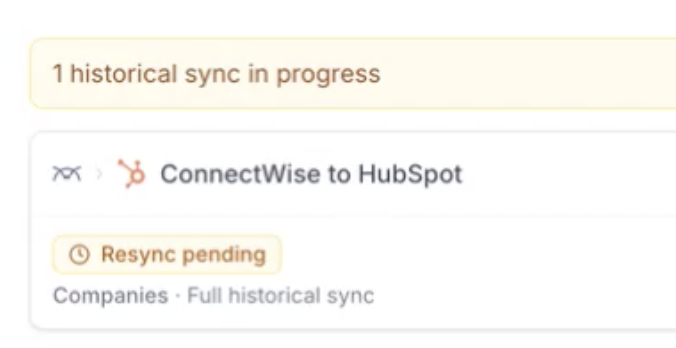
Resync in progress — the integration is actively pulling and writing records
One object at a time
The historical sync tool processes one object at a time. If you queue multiple objects (Companies, Contacts, and Deals, for example), each one runs in turn — you'll see Companies move into "in progress" while the others sit in "pending," and so on. The Sync Status view reflects this queue as you observe it.
4. Observe creates and updates on the logger
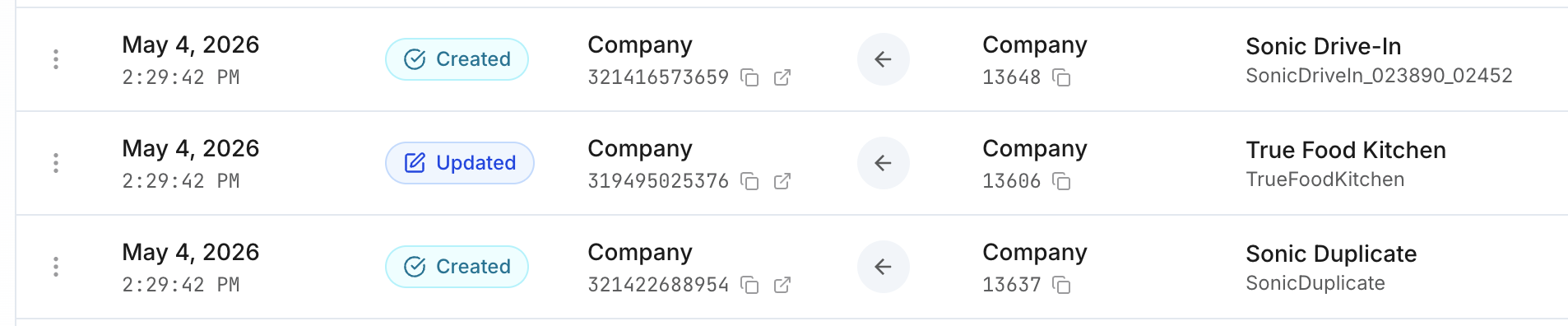
Once the resync is in progress, the logger for that object shows the records being created and updated in real time. As the run completes, you'll see the full list of records that were created, modified, or updated.
Read the full message for any log entry
Some log messages are too long to display fully in the logger view. To read the entire message:
Click the copy button on the entry, or click the ellipses (three-dot menu) and select copy
Paste into the text tool of your choice (a notepad, document, or chat window)
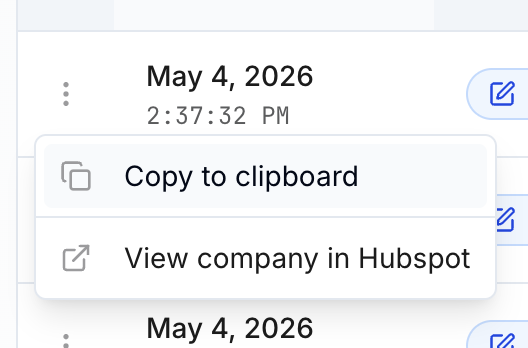
This is especially useful when you're contacting support — paste the full log message into the chat so we can see exactly what the integration recorded.
5. When it's done
When the historical sync finishes, the Sync Status view returns to its idle state and the logger shows the complete record of what was created and updated. Spot-check a handful of records in HubSpot to confirm they look right, then you're ready to move on.
What's next
With the company historical sync complete, you're ready to configure and launch your contact and opportunity syncs. Move on to A9 — Configure Contacts.
When to contact support
The resync stays in Resync pending for an unusually long time and never moves to Resync in progress
The logger shows repeated error entries on a large number of records — copy a sample of the log messages and include them in your support request
The records that arrived in HubSpot are missing values you expected to see based on your field mappings
Previous: A7 — Use the Test Tool to Preview Sync Behavior Next: A9 — Configure Contacts