Step 5 — Run Company Matching
Last updated: May 29, 2026
The Company Match tool prevents duplicate data from being created between HubSpot and ConnectWise. When you turn on the integration, both systems likely already have company records that represent the same business — matching links those records together so the integration treats them as one company instead of creating duplicates.
If your HubSpot account has no company data yet, you can skip this step. If you do have HubSpot company data, run matching before you turn on historical sync.
Before you start
Confirm you have:
Completed A5 — Configure Company Sync Filters. Matching reviews the filtered set, not your entire company universe.
A rough sense of how clean your data is — domain quality and phone-number quality on both sides drive match confidence.
1. How matching works
When you run a match, SmartHub compares records between the two systems and assigns each candidate pair a Confidence score based on how many attributes line up (name, domain, address, phone number, and others). High-confidence pairs can be approved automatically; lower-confidence pairs land in a review queue for you to look at.
The score is the sum of weighted attribute matches:
Attribute | Weight |
|---|---|
ConnectWise Rec ID | +95 |
Company ID | +90 |
Name | +45 |
Domain | +30 |
Phone | +25 |
Street Address | +12 |
Zip | +10 |
City | +8 |
State | +5 |
Pairs with strong identifier matches (Rec ID, Company ID) score very high on those alone. Pairs without identifier matches lean on the descriptive attributes — name plus domain plus phone, for example, can land a pair around 100.
2. Start a matching job
Click Start Matching at the top of the Match tool. Before it runs, set the options:
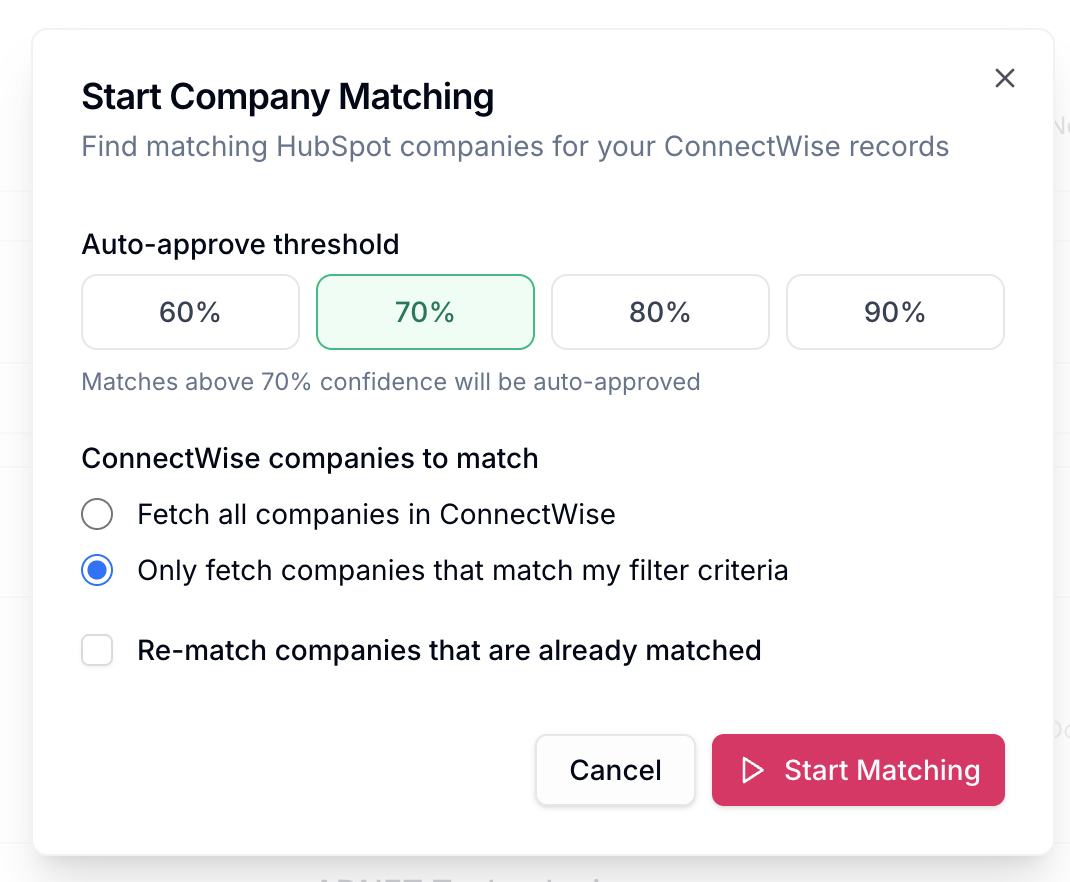
Auto-approve threshold
Set a default auto-approved threshold — any candidate pair that scores at or above this threshold is automatically matched without showing up in the review queue. The default threshold is 70%. Raise it (for example, to 80%) if you want to be more conservative; lower it if your data is unusually clean and you want less review.
Scope
Choose between:
Entire database — match every HubSpot company against every ConnectWise company
Only fetch companies that match my filter criteria — only consider companies that pass your sync filters from A5
The filter-criteria option is recommended. It returns only the companies you actually need to match, and saves you a significant amount of busy work reviewing companies that won't sync anyway.
Rematch already-matched companies
If you've previously run matching and have since changed your sync filters (or your underlying data), check Rematch Companies that are already matched. This re-runs scoring against your existing matches so you can confirm they're still correct under the new filter set.
Run
Click Start Match. The integration processes both databases and returns results — companies with possible matches, and companies with no candidate to match against.
3. Review the results
Each row in the results table shows a candidate pair, its Confidence score, and a Pending status. From here you can:
Approve match — confirm the pair is the same company. The integration treats them as a single entity going forward and syncs data between them.
Reject match — confirm the pair is not the same company. The candidate is dismissed.
View Details — open the pair's side-by-side comparison to see exactly which attributes match. This is the easiest way to build confidence in a high-score result. For example, a 99% pair might show a matching address, state, city, zip, phone number, and domain.
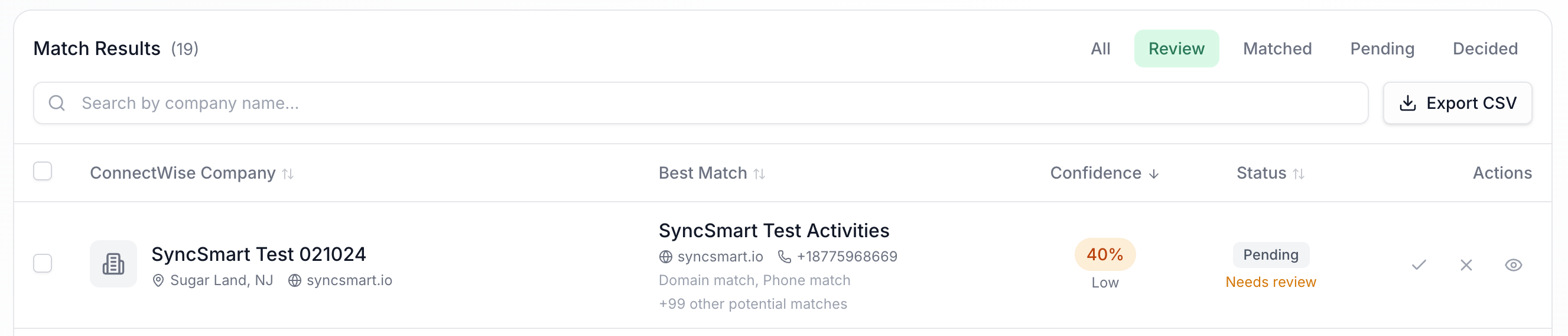
Possible suggestions
For ambiguous candidates, the integration also surfaces other possible suggestions — additional HubSpot companies that share some attributes with the ConnectWise record. For example, when matching a ConnectWise company called "AdNet Technologies," the suggestions list may include other HubSpot companies with the word "Technologies" in the name. Use this to check whether the algorithm picked the best of several similar candidates.
Find a match manually
If the integration didn't surface the right HubSpot company at all, click Find Match Manually. This lets you search through HubSpot directly and assign the match yourself.
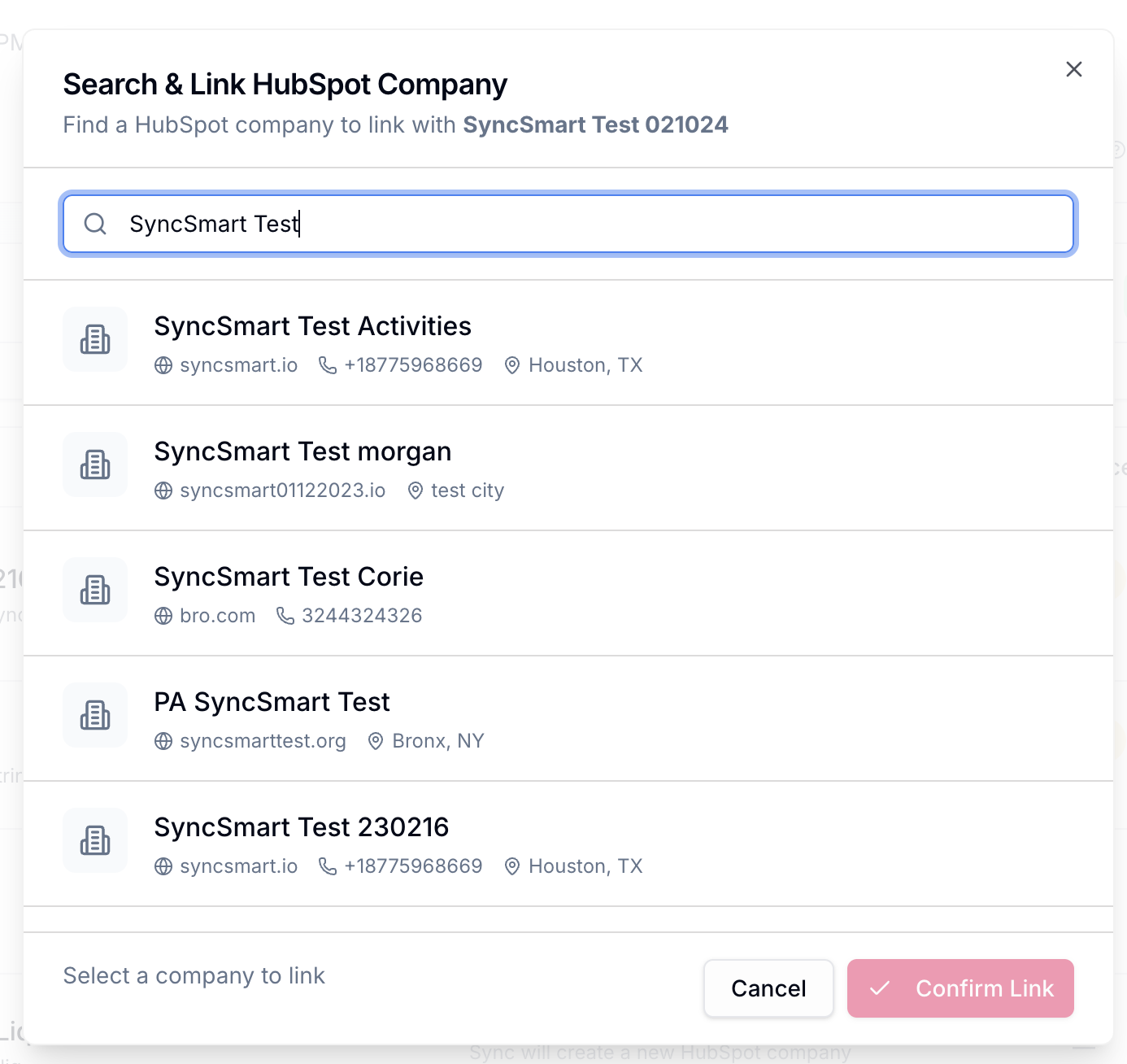
The Review queue
Click Review to show only the records the integration is most uncertain about. This is the high-value working list — the candidates where your judgment matters most. The video walks through a "Chubbies" vs. "Chubby's Shorts" example: the names look ambiguous, but a side-by-side view shows the city, zip, state, address, and domain all match, which is enough to approve.
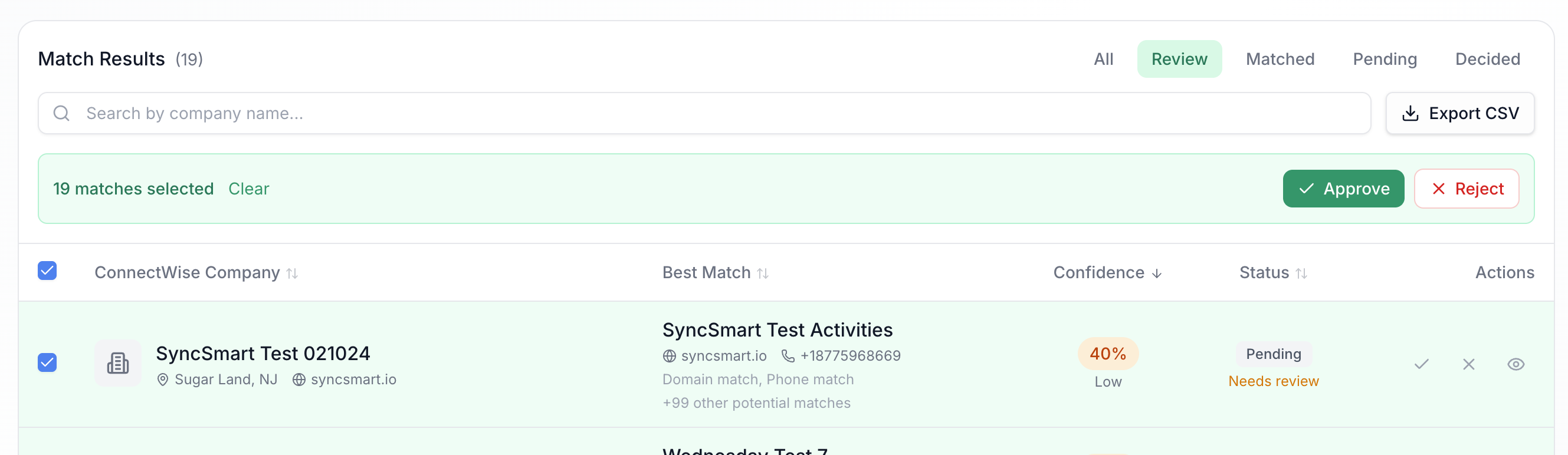
4. Bulk operations — use with care
For large batches of obvious decisions, use the row checkboxes. Select All selects every row in the current view, and you can then Approve All or Reject All.
Only use bulk operations when you have absolute certainty and have already reviewed the records. Bulk-approving a mixed batch is one of the fastest ways to create unwanted duplicate data.
5. Multiple locations for the same business
The match tool is especially useful for handling multiple locations of the same business. For example, you might have many ConnectWise records for "Sonic Drive-In" with the same business name and domain but unique addresses and phone numbers. In this case, the same HubSpot record can appear as a potential match for several ConnectWise records.
Approve the match for only one of the location records (the one that maps to the corresponding HubSpot record), and reject the matches for the others. Rejecting causes the integration to create unique HubSpot records for those other locations during the next sync, so you can manage each location's relationship independently. The integration then maintains data integrity from there — no duplicates get created, and each location stays linked to its own HubSpot record.
6. A note on HubSpot merges
Matching does not automatically re-link records when you merge two companies in HubSpot. If a merge happens to carry the right ConnectWise Rec ID value through to the surviving record, the integration will pick up the link automatically — but this isn't guaranteed.
We generally recommend against merging companies in HubSpot when running an integrated system. It's safer to archive the records you don't want, which preserves the existing match links and avoids subtle re-linking problems. If you do need to merge, contact support so we can help confirm the result.
What's next
Once your review queue is empty and you're comfortable with the remaining unmatched records (which will be created as new during historical sync), move on to A7 — Use the Test Tool to Preview Sync Behavior.
When to contact support
Match results show pairings that are obviously incorrect with high confidence scores (suggesting a data-quality issue worth investigating)
You bulk-approved a batch by mistake and need to unwind specific matches
You completed matching but still see duplicates appearing in HubSpot after a sync
You merged companies in HubSpot and aren't sure whether the integration link was preserved
Previous: A5 — Configure Company Sync Filters Next: A7 — Use the Test Tool to Preview Sync Behavior