Configuring Engagement and Activity Syncs
Last updated: November 5, 2026
Syncing engagements between HubSpot and ConnectWise helps your teams stay aligned and your timelines stay clean. Here’s how it works and what you need to know:
What We Support
All HubSpot engagement types: Tasks, Notes, Calls, Meetings, Emails—you name it.
Custom ConnectWise engagements: We can sync from ConnectWise into HubSpot, even if they’re custom types.
Default engagement mapping from HubSpot to ConnectWise:
For example:HubSpot Task → ConnectWise Task
HubSpot Note → ConnectWise Note
HubSpot Call → ConnectWise Call
What We Don’t Support
Custom field mapping for engagements: You can’t map individual custom fields within an engagement record—just the engagement type itself.
How to Set It Up
From the SyncSmart UI, go to Add New Mapping

Select HubSpot engagement to ConnectWise activity
From the SyncSmart UI, go to the Engagement Sync Settings section.
Toggle ON the engagement types you want to sync.
Review the default mappings (they're automatically applied).
If syncing from ConnectWise to HubSpot, select which custom engagement types you want to include.
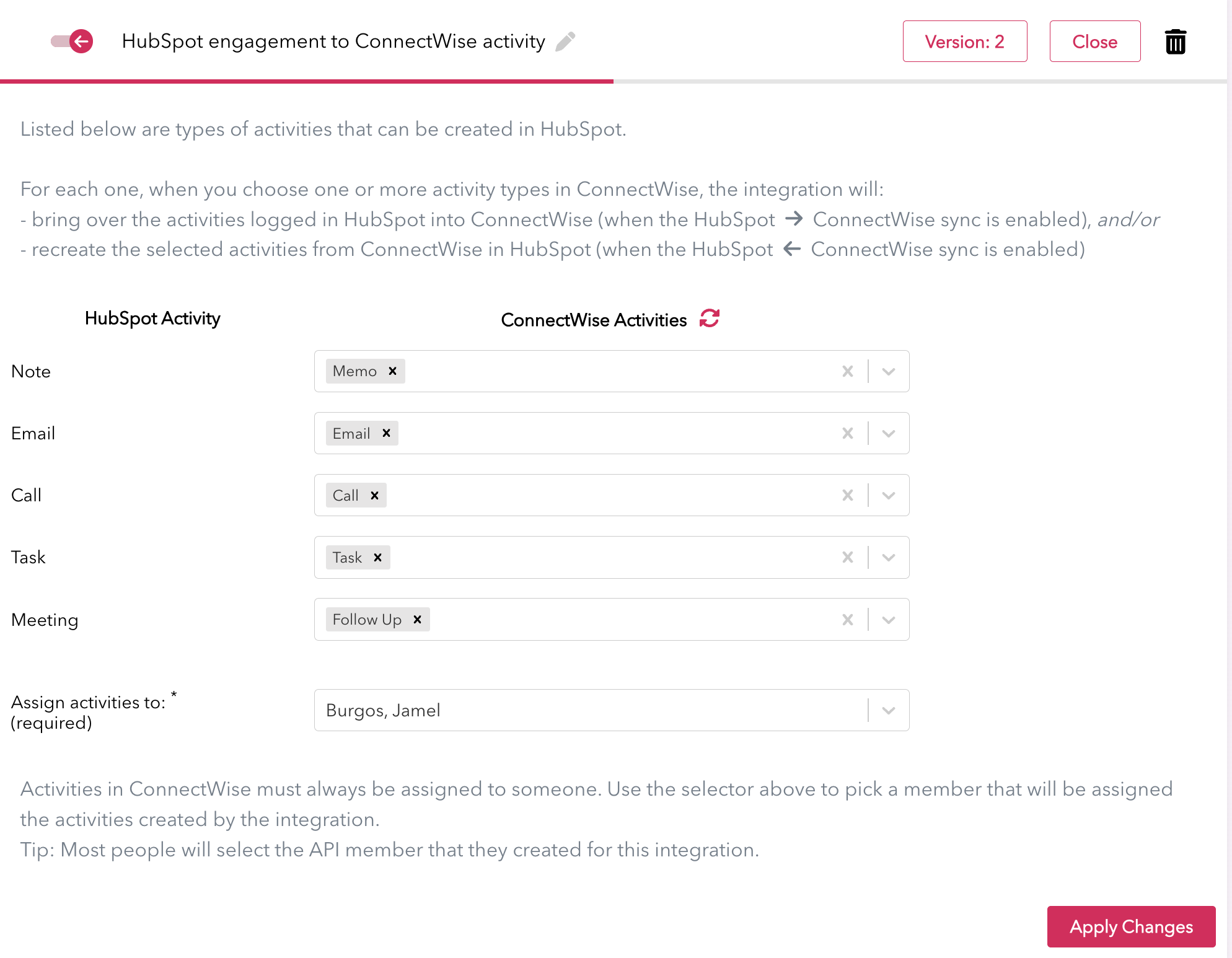
That's it. Once enabled, we’ll keep engagements flowing in the right direction based on your selections.