ConnectWise Authentication for HubSpot Integration
Last updated: August 25, 2026
This article walks through how to configure ConnectWise security settings and generate API credentials required to authenticate and connect your ConnectWise environment to the HubSpot integration.
Overview
To successfully connect ConnectWise and HubSpot, you must:
Configure appropriate security roles and permissions in ConnectWise
Create or update an API Member
Generate API credentials (public and private keys)
Enter those credentials into the integration setup
These steps typically require advanced administrator permissions in ConnectWise.
Prerequisites
Before you begin, ensure you have:
Admin-level access to ConnectWise Manage
Permission to manage Security Roles, Members, and API keys
Access to your integration setup screen (where credentials will be entered)
Step 1: Configure Security Roles
The integration relies on an API Member that must have sufficient permissions to read and write data.
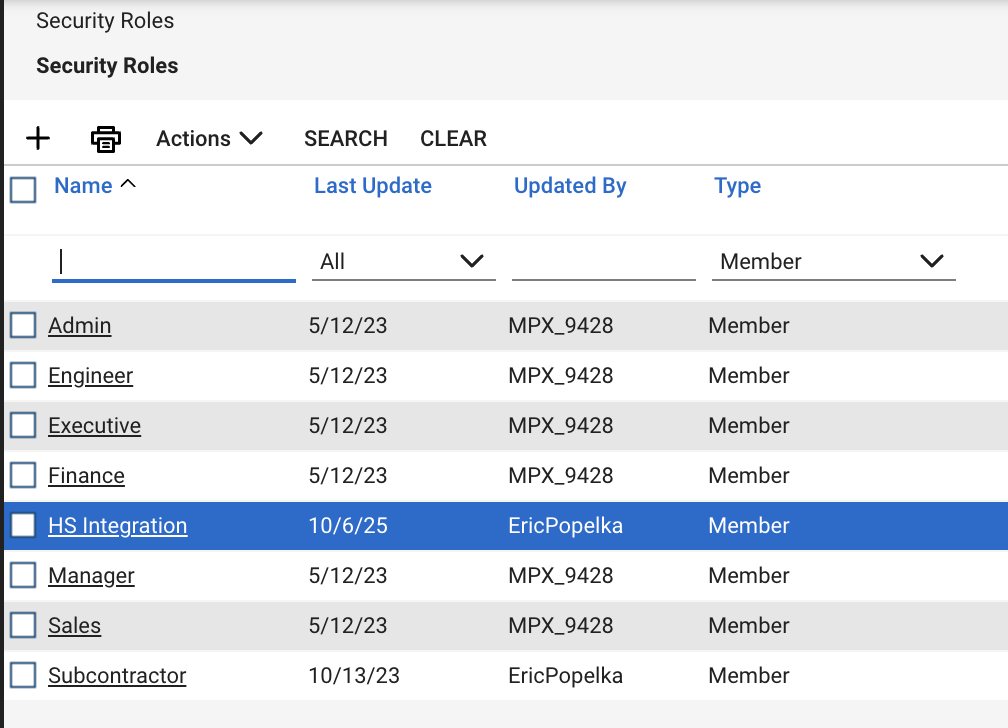
In ConnectWise, navigate to:
System → Security Roles
Either:
Use an existing admin role
Create a new role specifically for the HubSpot integration, following this guide
Ensure the role includes permissions for the objects and actions your integration will use (for example: Companies, Contacts, Opportunities, Tickets, Notes, etc.). The required permissions are outlined here.
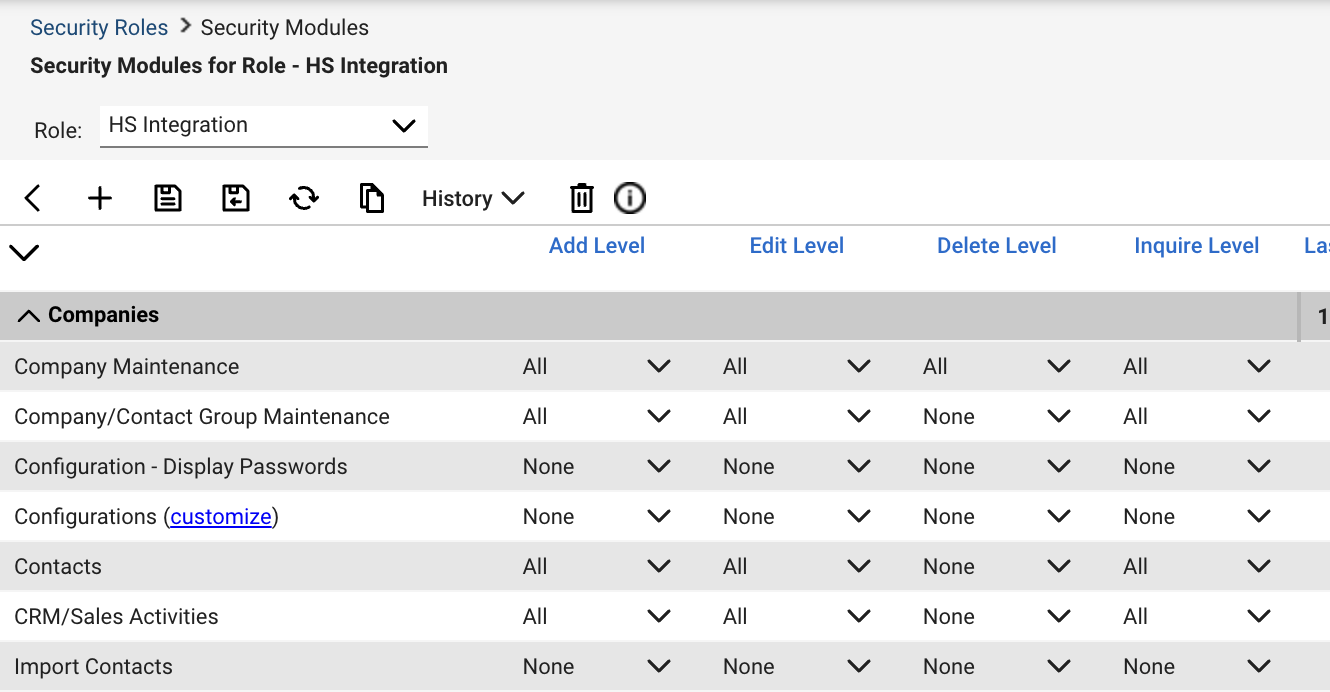
Tip: A best practice is to create a dedicated role (e.g., "HubSpot Integration") so permissions are easy to manage and audit.
Step 2: Create or Update an API Member
Next, create a ConnectWise API Member specifically for the integration and assign them the integration security role.
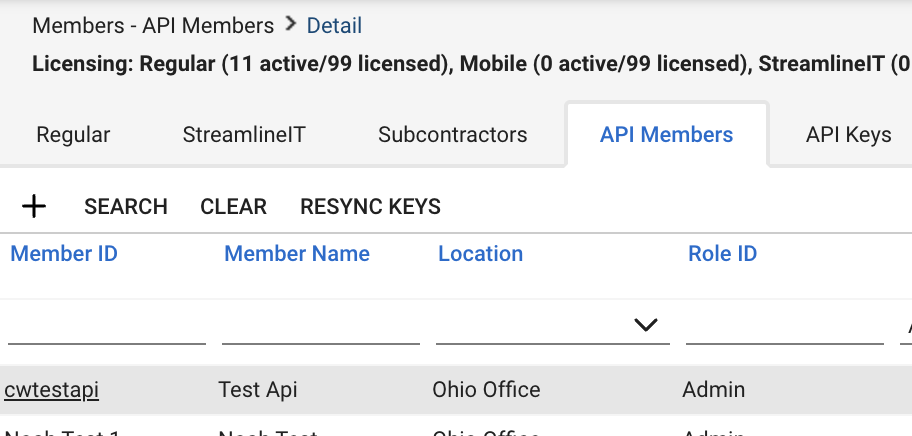
Go to:
System → Members
Create a new Member for the integration user called: hubspot+
[COMPANY NAME]@syncsmart.ioAssign a secondary email (for password resets or notifications): [email protected]
Ensure the following are configured:
Member Type supports API access
The Security Role is set to the role you configured in Step 1
The member is marked as Active
Step 3: Generate API Credentials
Once your API Member is set up, generate the credentials required by the integration.
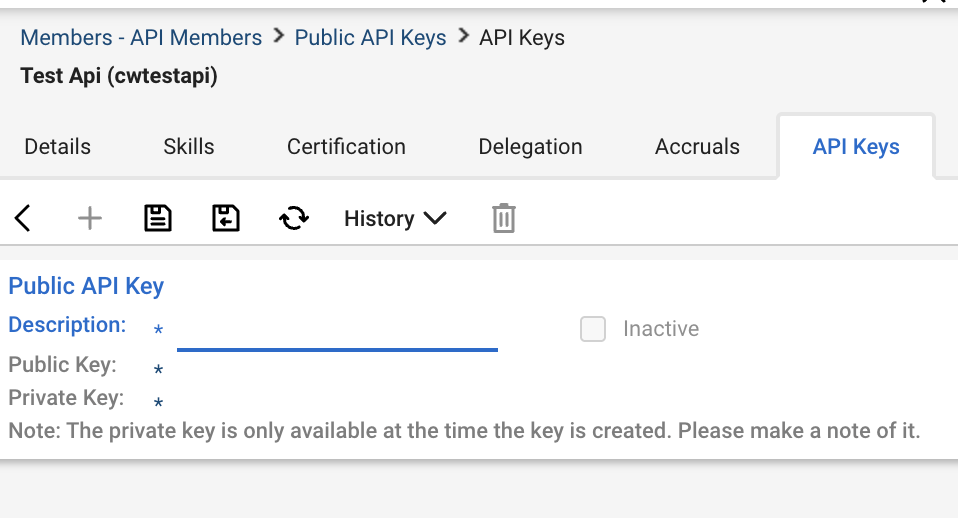
Navigate to:
System → Members → API Keys (or the API tab for the selected member, depending on your ConnectWise version)
Generate a new API key pair for the member
You will receive:
Public Key
Private Key
Important: Store the private key securely. You will not be able to view it again after closing the window.
Step 4: Collect Required Credentials
When configuring the integration, you will typically be asked for:
Company ID (your ConnectWise company/database ID)
Site URL (your ConnectWise Manage URL)
API Member ID
Public Key
Private Key
Have these values ready before moving on to the install wizard (linked in your kickoff email).
Step 5: Enter Credentials into the Integration
In your HubSpot ↔ ConnectWise integration install wizard:
Open the Authentication or Connection step
Paste each credential into its corresponding field
Save or test the connection
Once validated, the integration will be able to connect to your ConnectWise account via API and you can proceed with configuration (field mappings, sync rules, filters, etc.).
Troubleshooting
If authentication fails, check the following:
The API Member is active
The correct security role is assigned
Permissions include access to the objects you are syncing
The Company ID and Site URL are accurate
The API keys were copied correctly (no extra spaces)
If issues persist, try regenerating the API keys and updating them in the integration.
Need Help?
If you need assistance validating permissions or credentials, contact your support team with:
The name of the API Member
The security role assigned
A screenshot of the authentication error (if available)
This will help support troubleshoot quickly without needing access to sensitive credentials.