Setting ConnectWise as the System of Record in the UI
Last updated: January 8, 2026
Overview
Within the SyncSmart Integration UI, you have full control over which system should serve as the system of record (source of truth) for specific fields. This setting determines which system’s data takes priority when both HubSpot and ConnectWise contain values for the same field.
By designating ConnectWise as the preferred value source, you ensure that during sync operations, ConnectWise data will overwrite the corresponding HubSpot field whenever a conflict exists.
Example
If both HubSpot and ConnectWise contain a value for Company Name, and ConnectWise is set as the system of record, the integration will always retain the ConnectWise version of the Company Name when syncing.
Steps to Set ConnectWise as the System of Record
Navigate to the Field Mappings
From your integration dashboard, select the object you wish to configure (e.g., Companies, Contacts, Deals, etc.).
Click into the Field Mappings tab to view all mapped fields between HubSpot and ConnectWise.
Locate the Field Mapping
Identify the specific field you want ConnectWise to control.
Each row represents a single field mapping between HubSpot and ConnectWise.
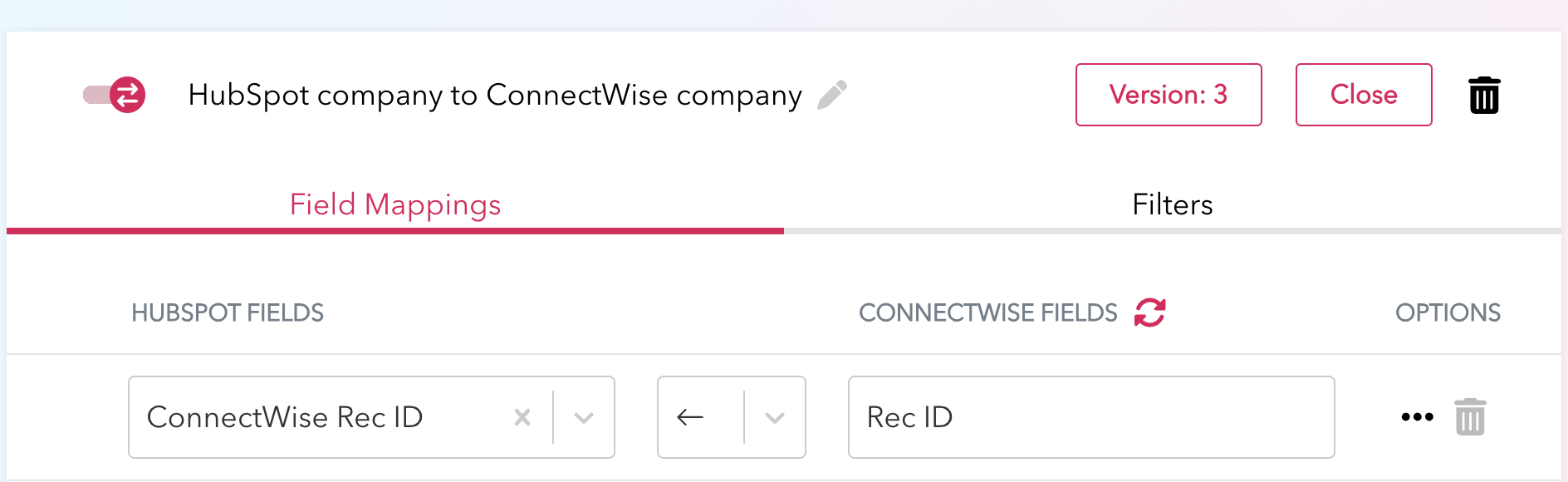
Open the Field Options
On the far right-hand side of the field mapping, click the three dots (ellipsis) icon.
A configuration prompt will appear.
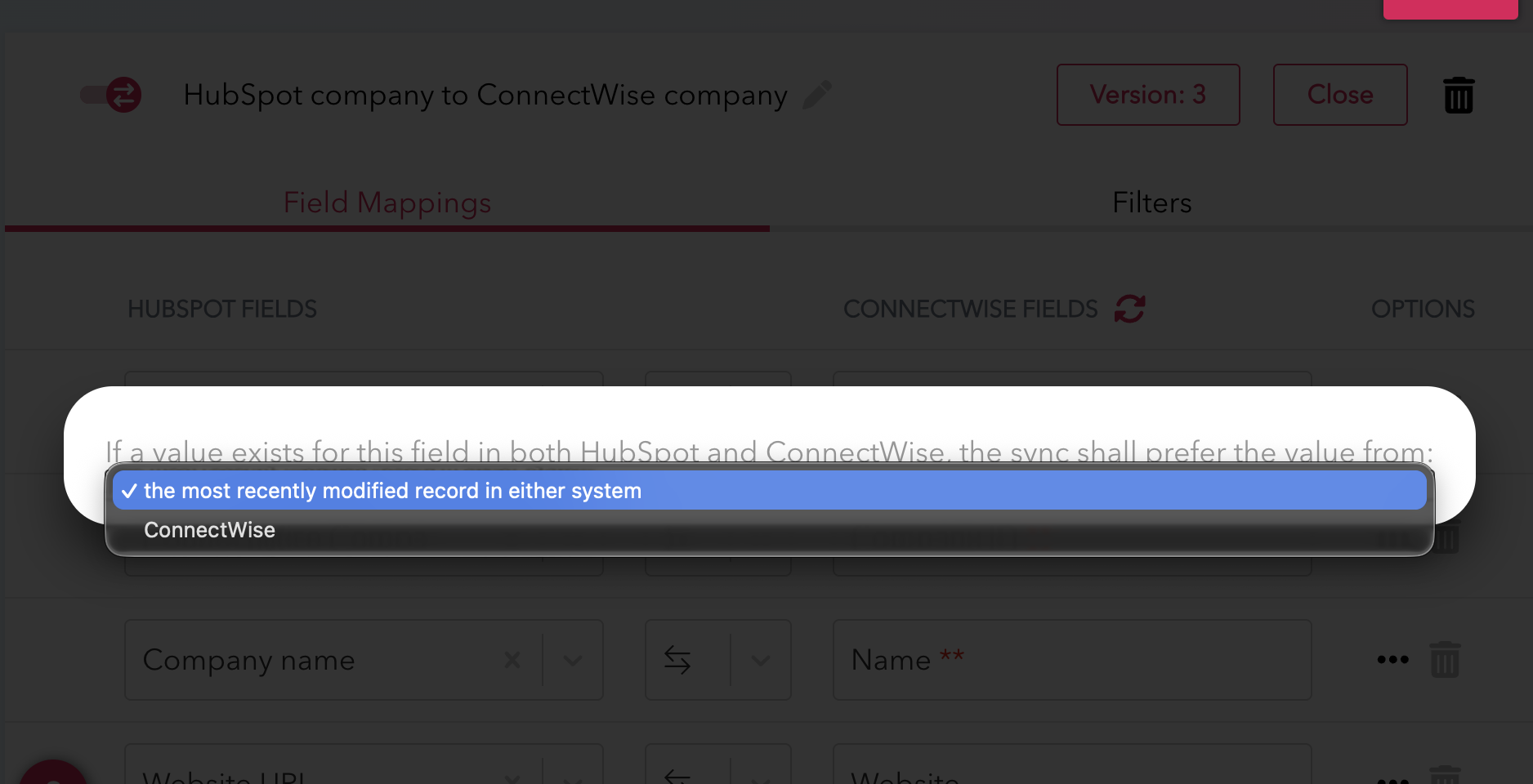
Set the Preferred Source
In the prompt, locate the dropdown labeled:
“If a value exists for this field in both HubSpot and ConnectWise, the sync shall prefer the value from:”
Select ConnectWise from the dropdown options.
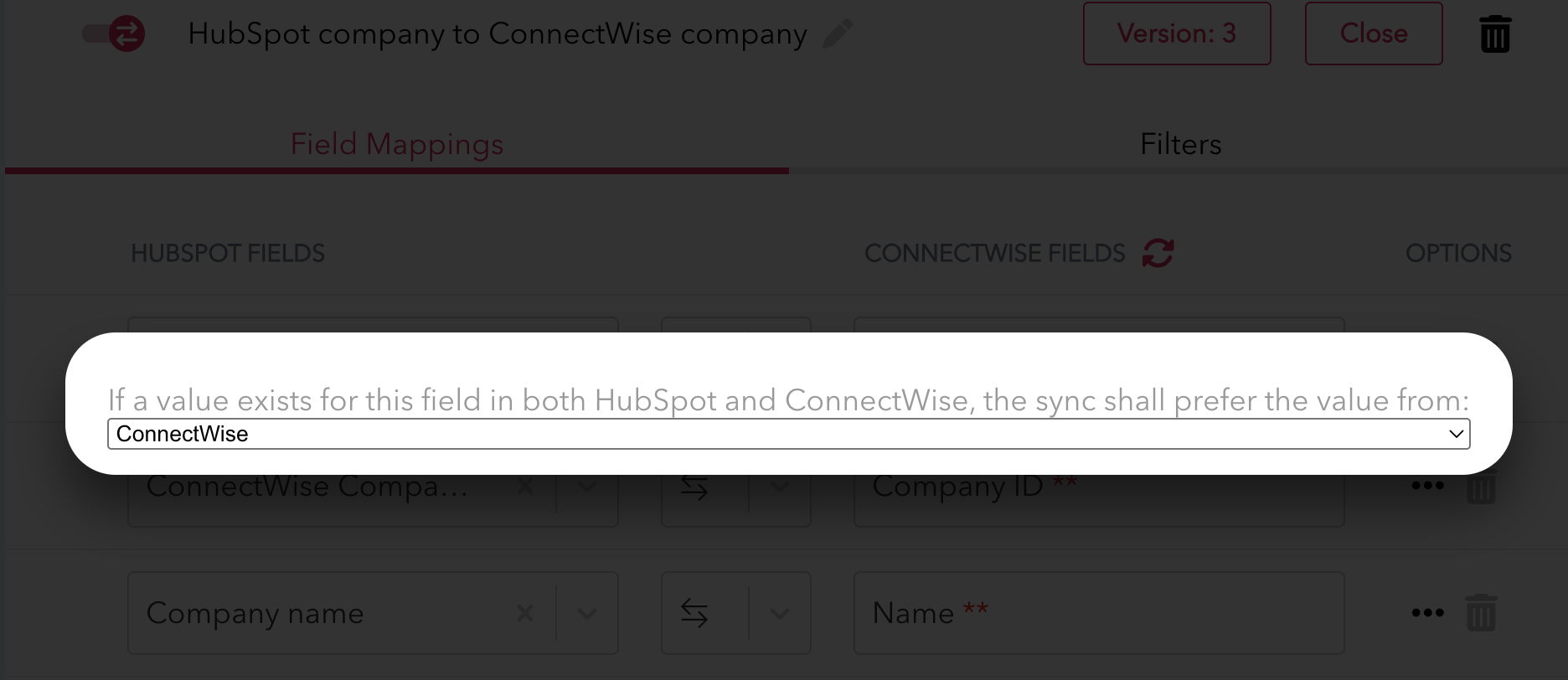
Save and Apply Changes
Once ConnectWise is selected, the system will treat it as the source of truth for that field.
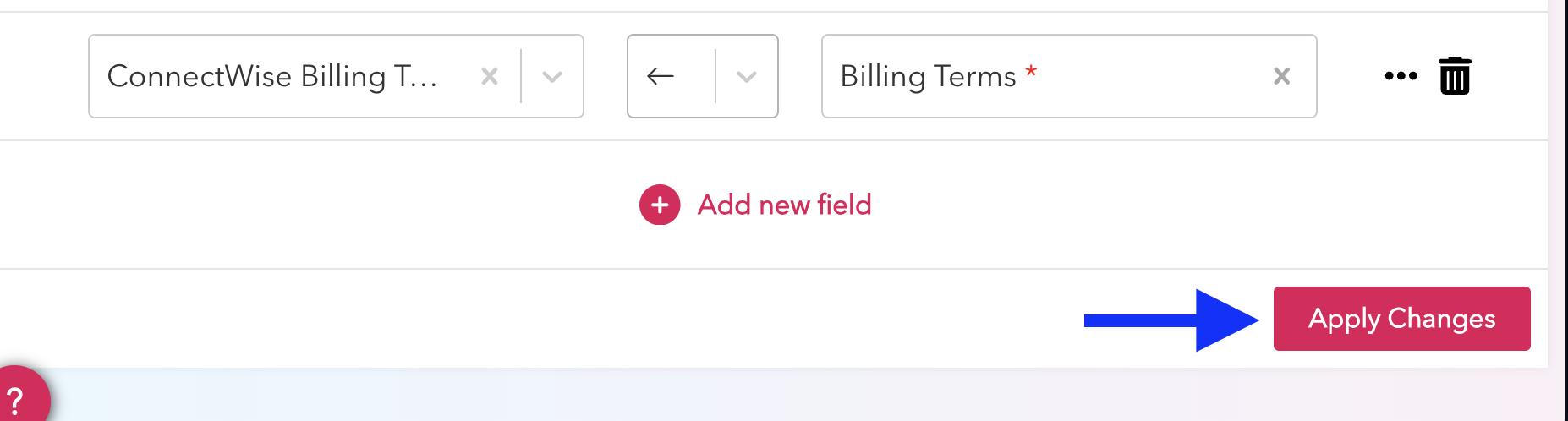
Make sure you click the Apply Changes button! Otherwise you will lose your edits.
Notes
You can adjust this setting individually for each mapped field, allowing flexibility across your data model.
Changes take effect on the next sync cycle once applied.