How to Add an Object Mapping to Your Integration
Last updated: January 13, 2026
Object mappings control how data syncs between connected platforms in your integration. If the object pairing you need has not yet been added, you can create it directly within the SyncSmart app.
Before You Begin
Make sure you are logged into the correct HubSpot account and have access to the integration configuration.
1. Access Your Integration
Navigate to https://my.syncsmart.io
Select the HubSpot portal (or applicable platform) where your integration is installed
Click on the ConnectWise for HubSpot app

2. Create a New Mapping
Click the New Mapping button
3. Select the Object Pairing
From the list of available options, choose the object pairing you want to add
Example: HubSpot Company → ConnectWise Company
Example: HubSpot Ticket → ConnectWise Service Ticket
4. Configure Field Mappings
After selecting your object pairing, you can configure how individual fields behave during sync.
Within the Field Mappings section, you can:
Map fields between platforms (e.g., HubSpot Company Name → ConnectWise Company Name)
Set the sync direction per field (HubSpot → ConnectWise, ConnectWise → HubSpot, or bi-directional)

Choose a System of Record for each field:
ConnectWise wins (ConnectWise is always treated as the source of truth)
Most recently modified wins (the latest updated value overwrites the older one)

This gives you granular control over how data flows and which system maintains authority.
5. Set Sync Filters
Sync filters allow you to control which records are included in the sync based on field-specific criteria.
Filters can be customized using rules such as:
Only sync Companies where Type = Customer
Only sync Deals where Stage = Closed Won
Only sync Tickets where Priority = High
Example:
You may choose to sync only HubSpot Companies where the field Type equals Customer or Prospect, excluding all others.
Using filters helps:
Reduce unnecessary data sync
Improve performance
Ensure only relevant records are shared between systems
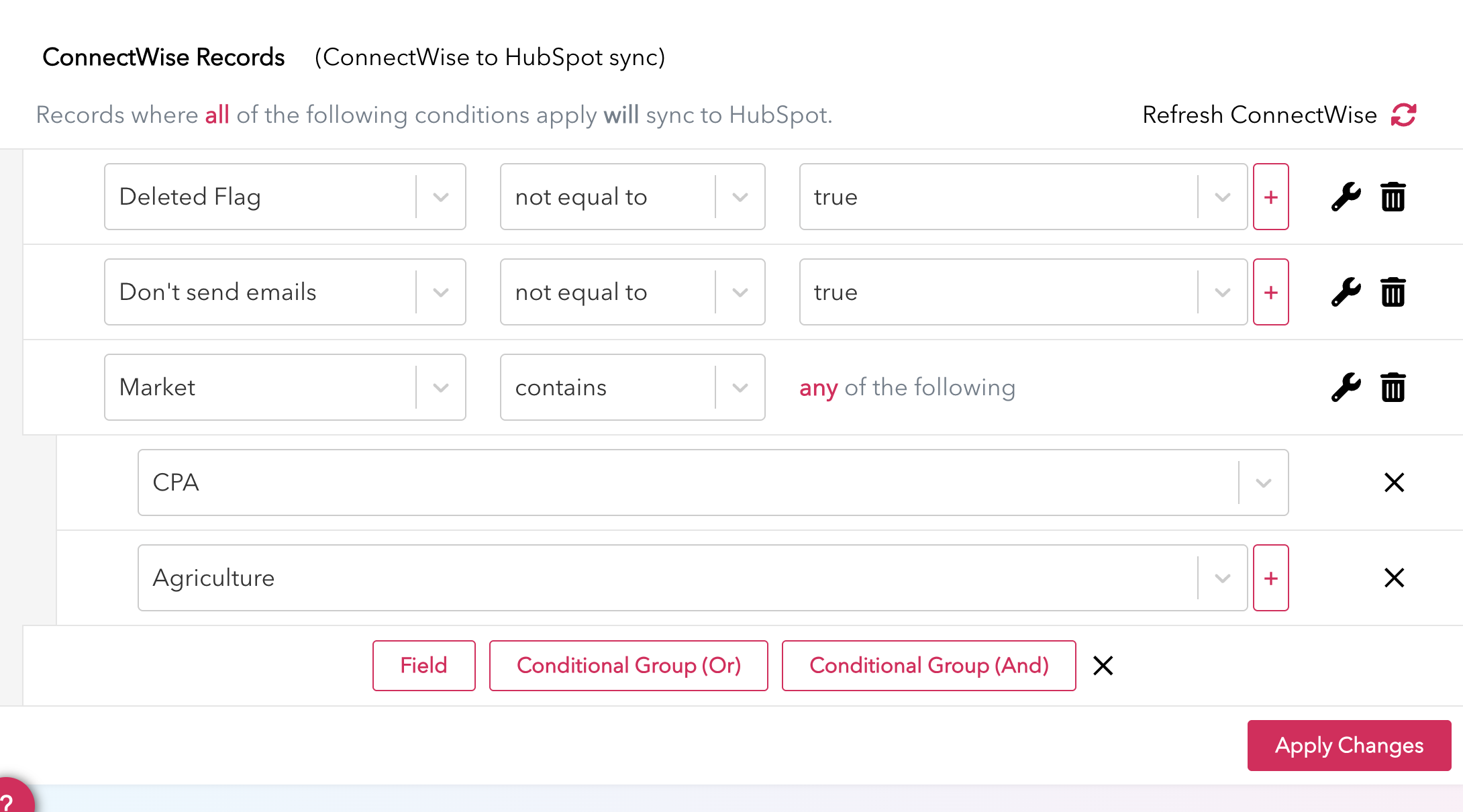
6. Apply Changes
Click the
Apply ChangesButton so that all of your field and sync settings are saved.
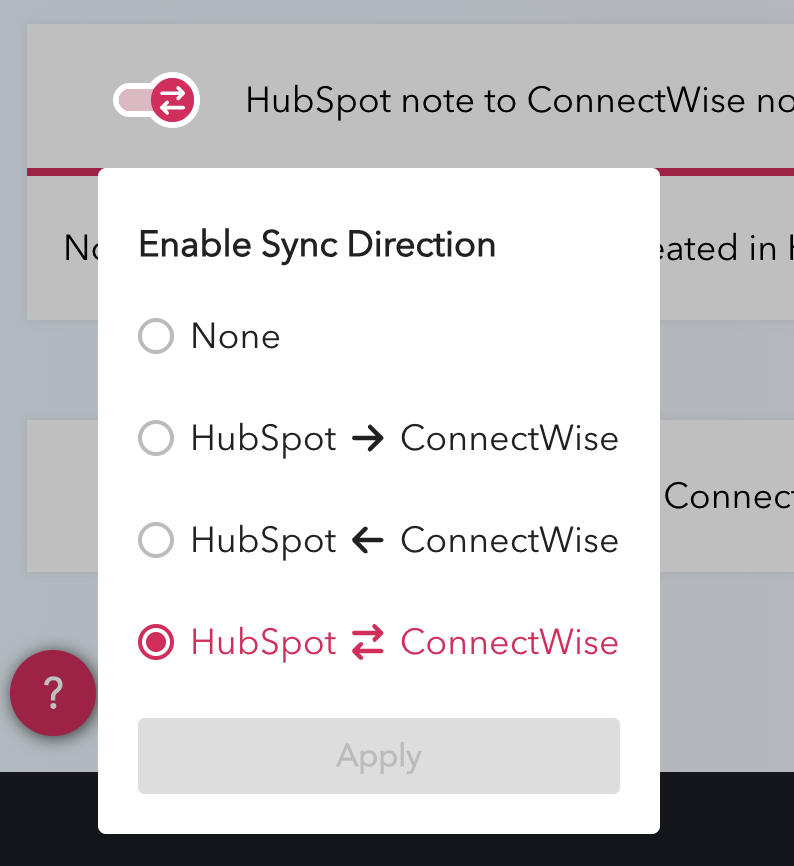
6. Set the desired Sync Direction (one-way or bi-directional)
Once a sync direction is set, the new object sync becomes active immediately.