GoFundMe Pro and HubSpot Integration App with SyncSmart - Setup
Last updated: December 10, 2025
Connecting your HubSpot integration with SyncSmart is quick and easy. It's important to note that GoFundMe Pro was previously known as "Classy" so please disregard any labelling issues. So let's begin!
Step 1: Install the application in your HubSpot portal
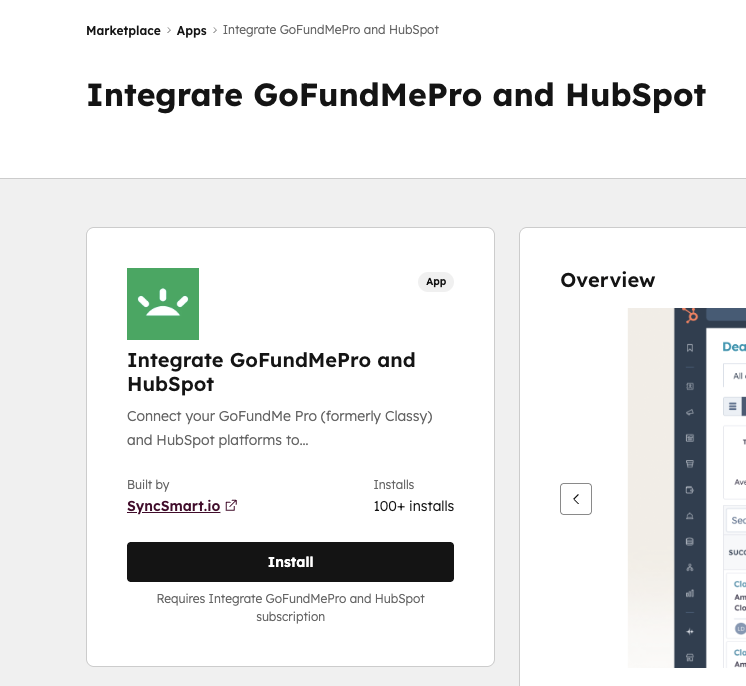
In the marketplace listing, find the Install App button in the HubSpot Marketplace listing to add the GoFundMe Pro integration to your HubSpot portal.
You'll then be asked to select a HubSpot account. Click on the HubSpot portal that you wish to use with your new GoFundMe Pro integration.
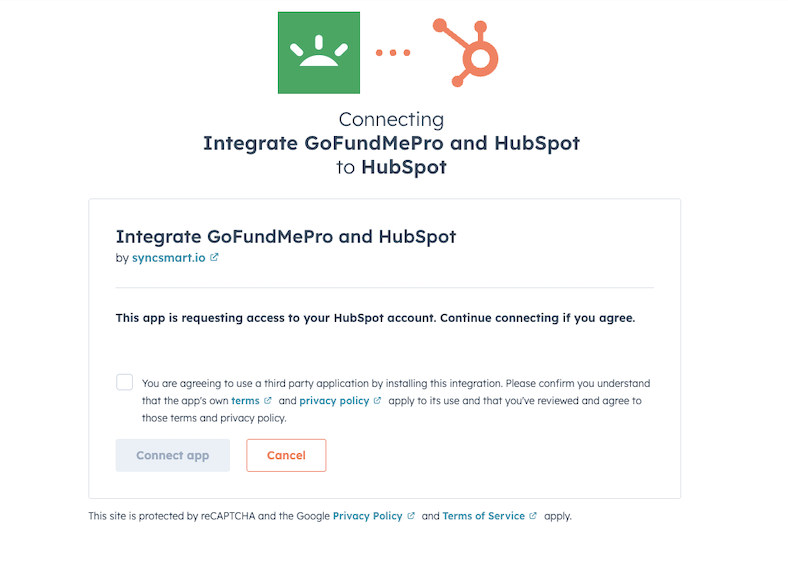
Next, you'll be asked if you wish to allow the Integrate GoFundMePro by SyncSmart to access your HubSpot account. This is required so that the integration may write information from GoFundMePro into your HubSpot portal, so click Connect App.
Step 2: Create your integration account
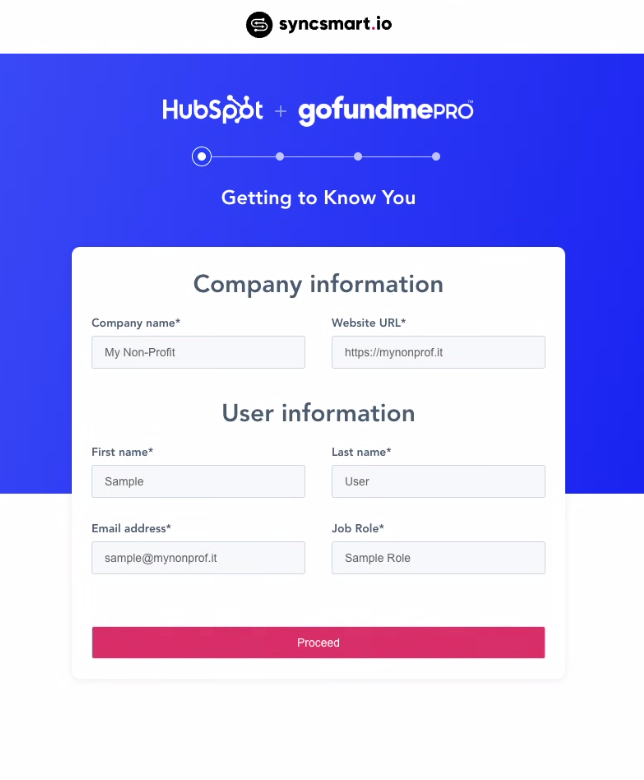
The account setup form will ask for some basic information to set up your account and prepare for your integration build.
Step 3: Choose a plan and provide billing information
Select a plan that best meets your needs and budget:
Influence is the most affordable plan, and allows supports in GoFundMe Pro to sync to contacts in HubSpot, with donations appearing as the timeline events on a contact. Up to 250 donations may be synced per month.
Empower provides the features available in Influence, plus the ability to sync GoFundMe Pro donations as deals in HubSpot. Up to 1000 donations may be synced per month.
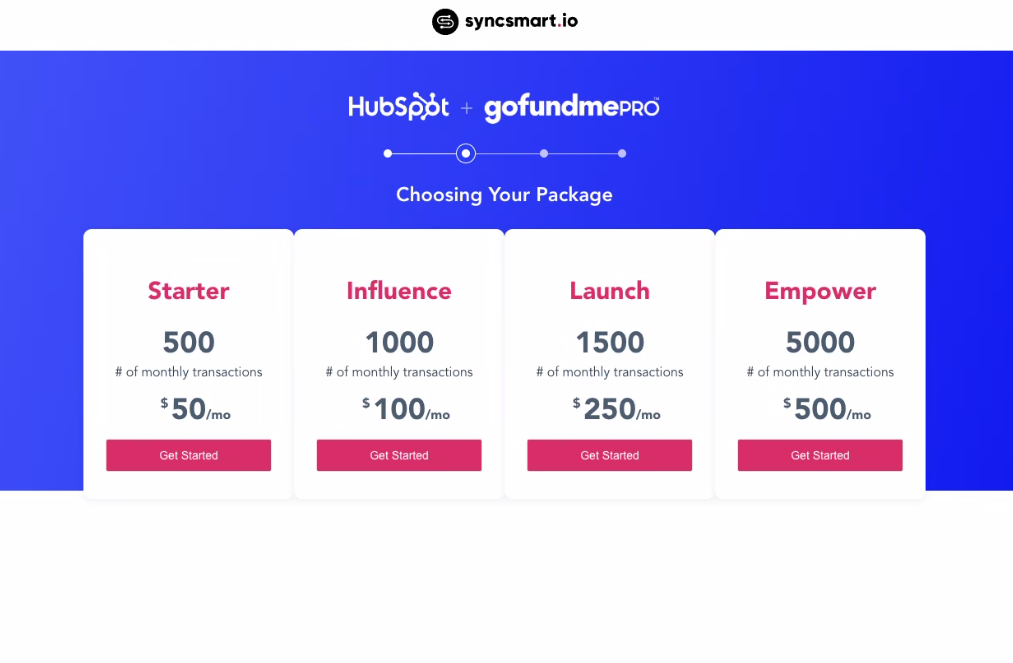
Once you've selected a plan that best meets your needs, click the Get Started button under it. On the next screen, you'll be asked to provide your billing information. We accept VISA, MasterCard, American Express and Discover.
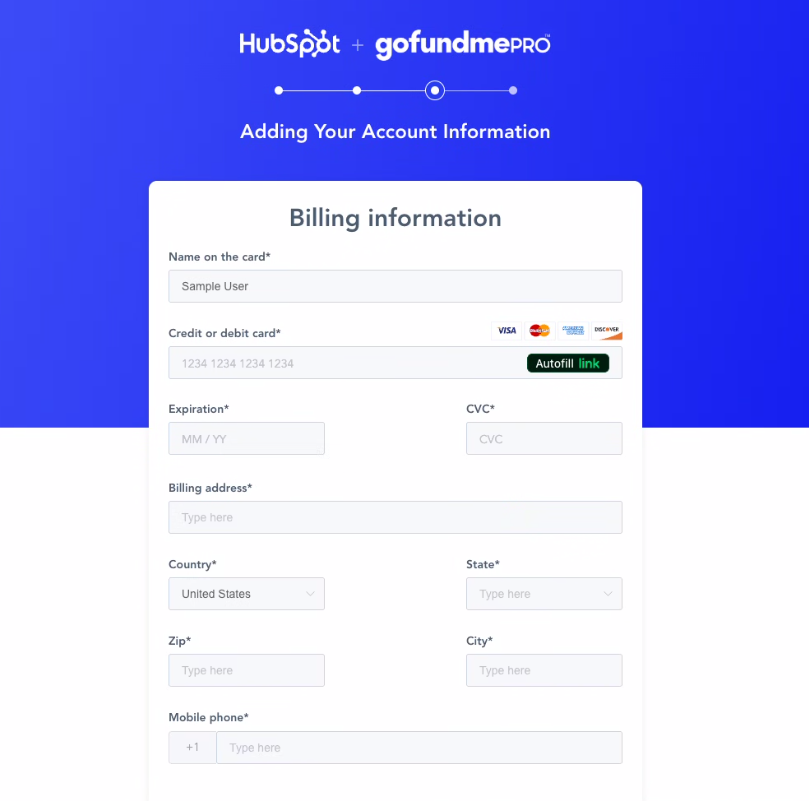
Step 4: Connect the integration to your GoFundMe Pro account
Upon successful validation of your billing information, you will be asked for GoFundMe Pro API credentials. These credentials allow the integration to retrieve data in your GoFundMe Pro portal using GoFundMe Pro
's robust API (application programming interface).
Confused by all this techno-babble? No worries - simply continue following this guide, and we'll guide you through exactly what needs to be done.
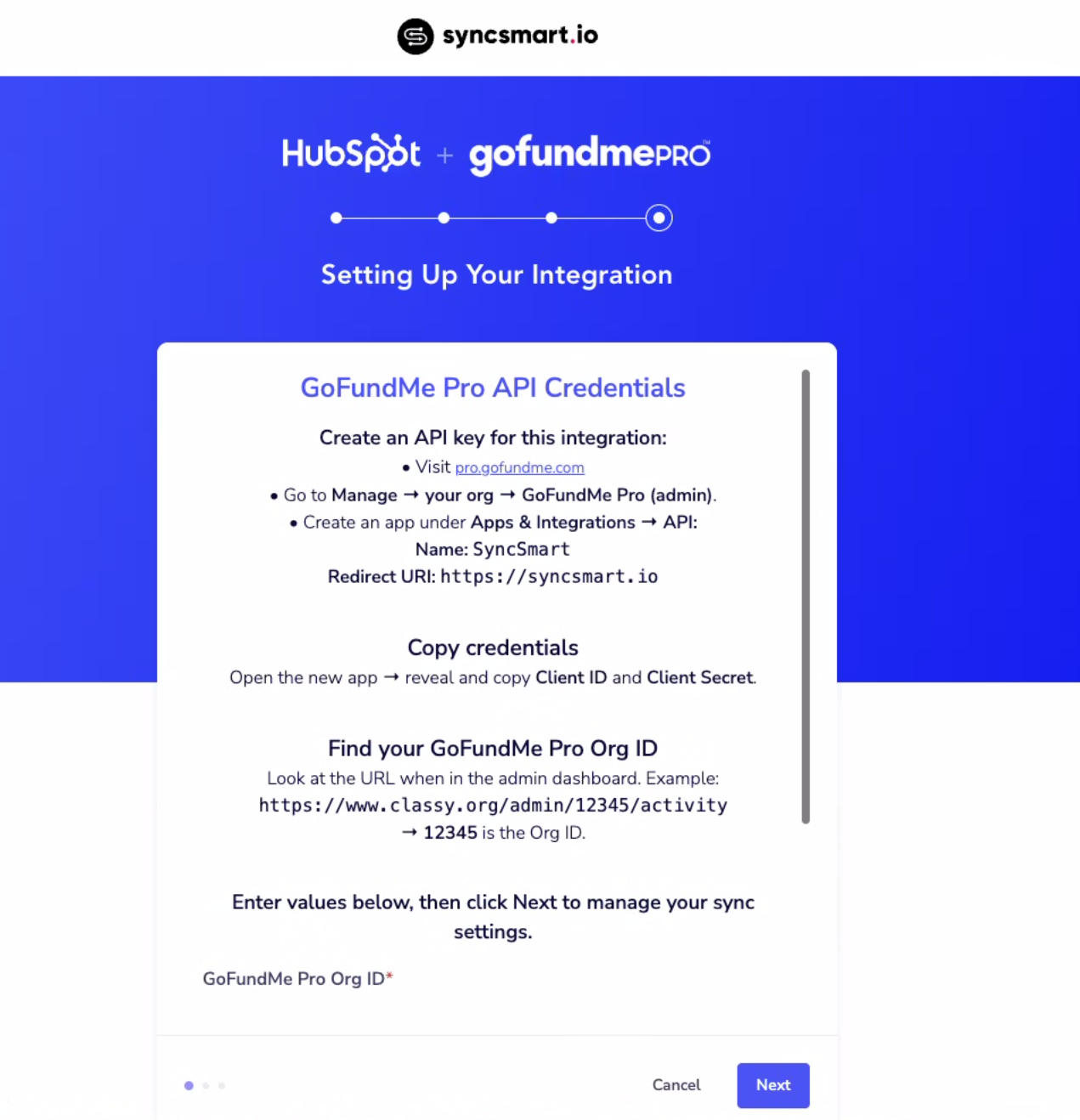
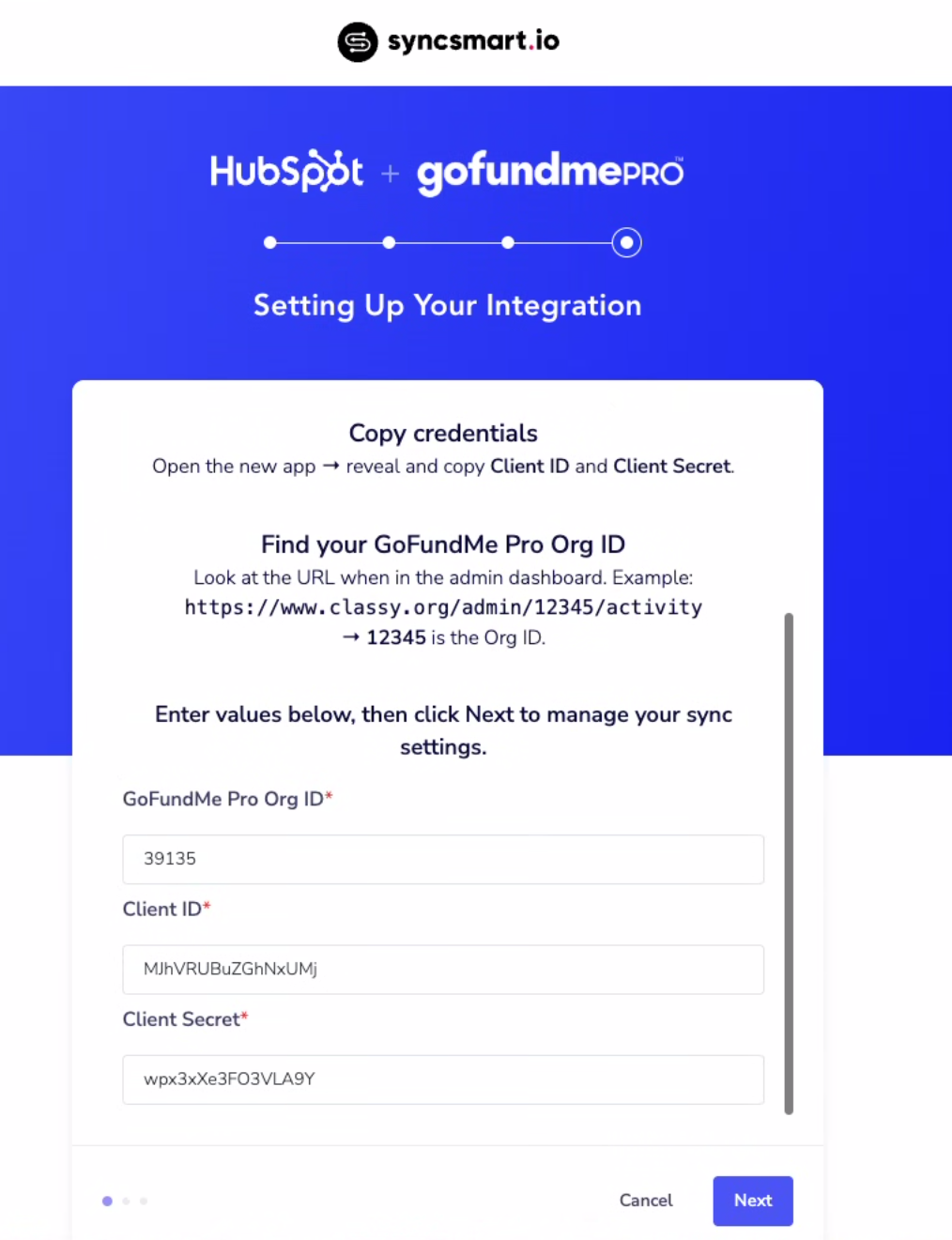
During this step, the integration will automatically connect to your GoFundMe Pro account. In most cases, all required fields will populate on their own and no manual action is needed.
If you are prompted to confirm your GoFundMe Pro Org ID, simply enter it in the field provided.
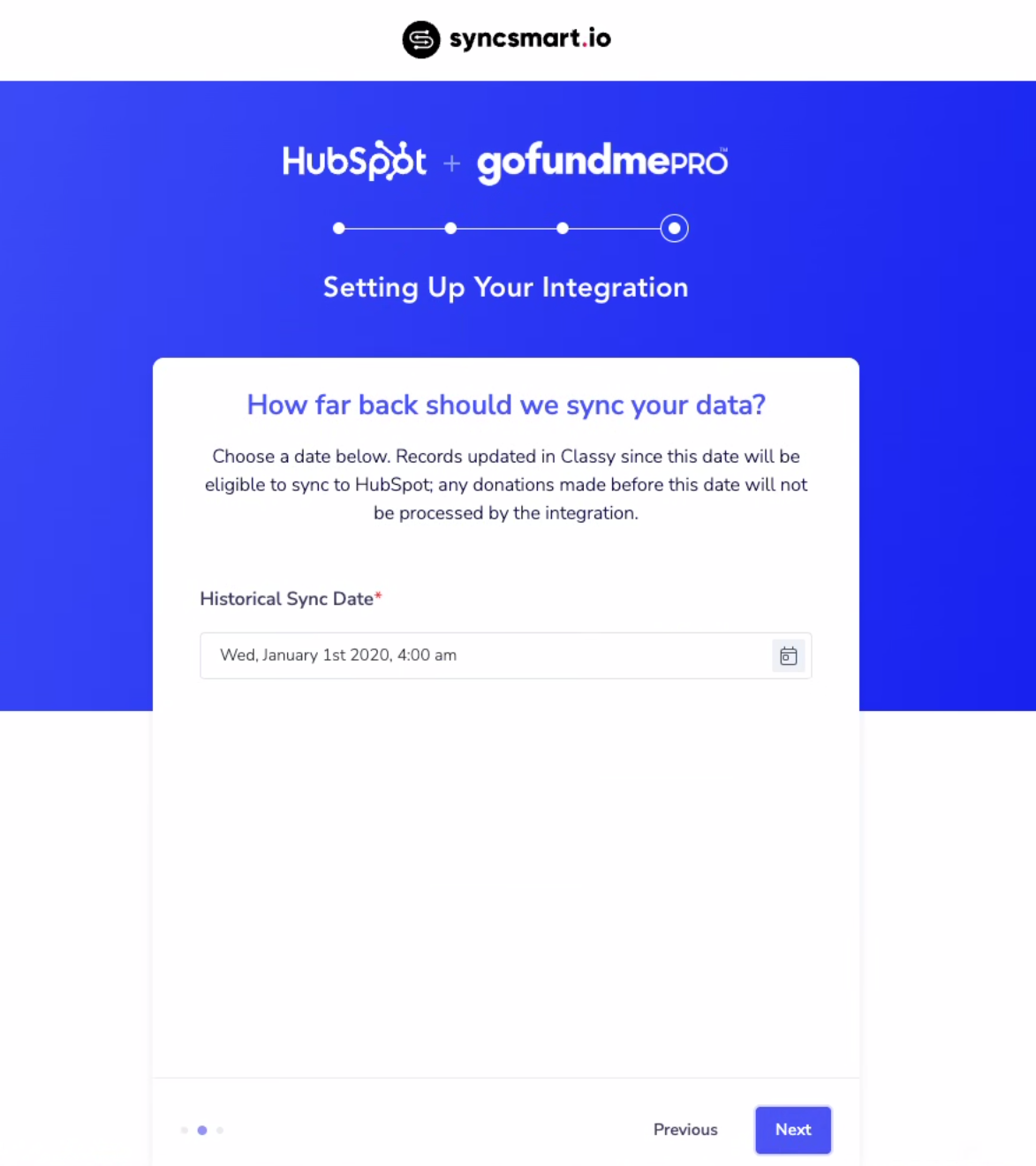
Select how far back you’d like GoFundMe Pro data to sync into HubSpot.
Any records updated after this date will be included going forward.
Click Next once you’ve chosen your date.
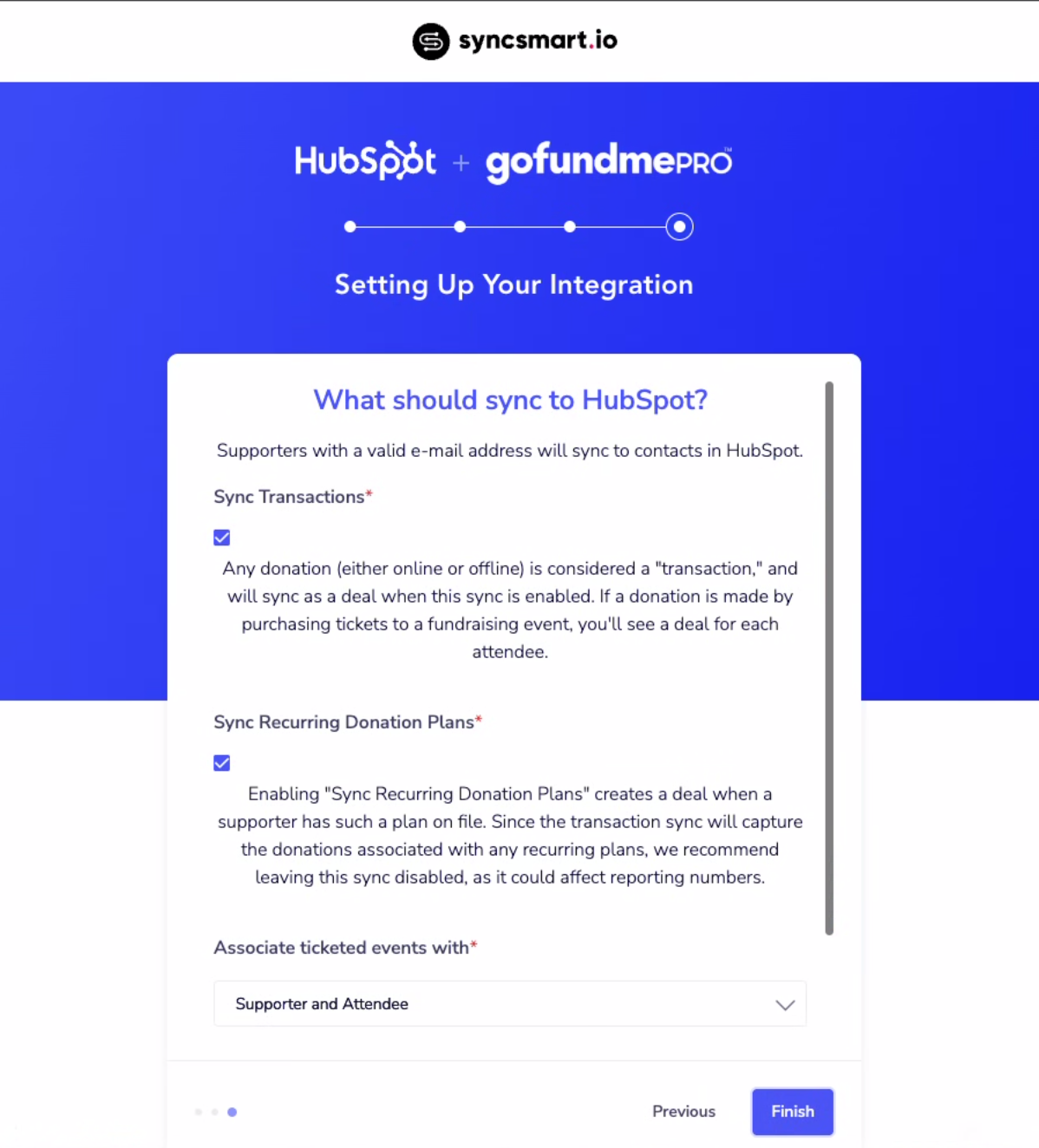
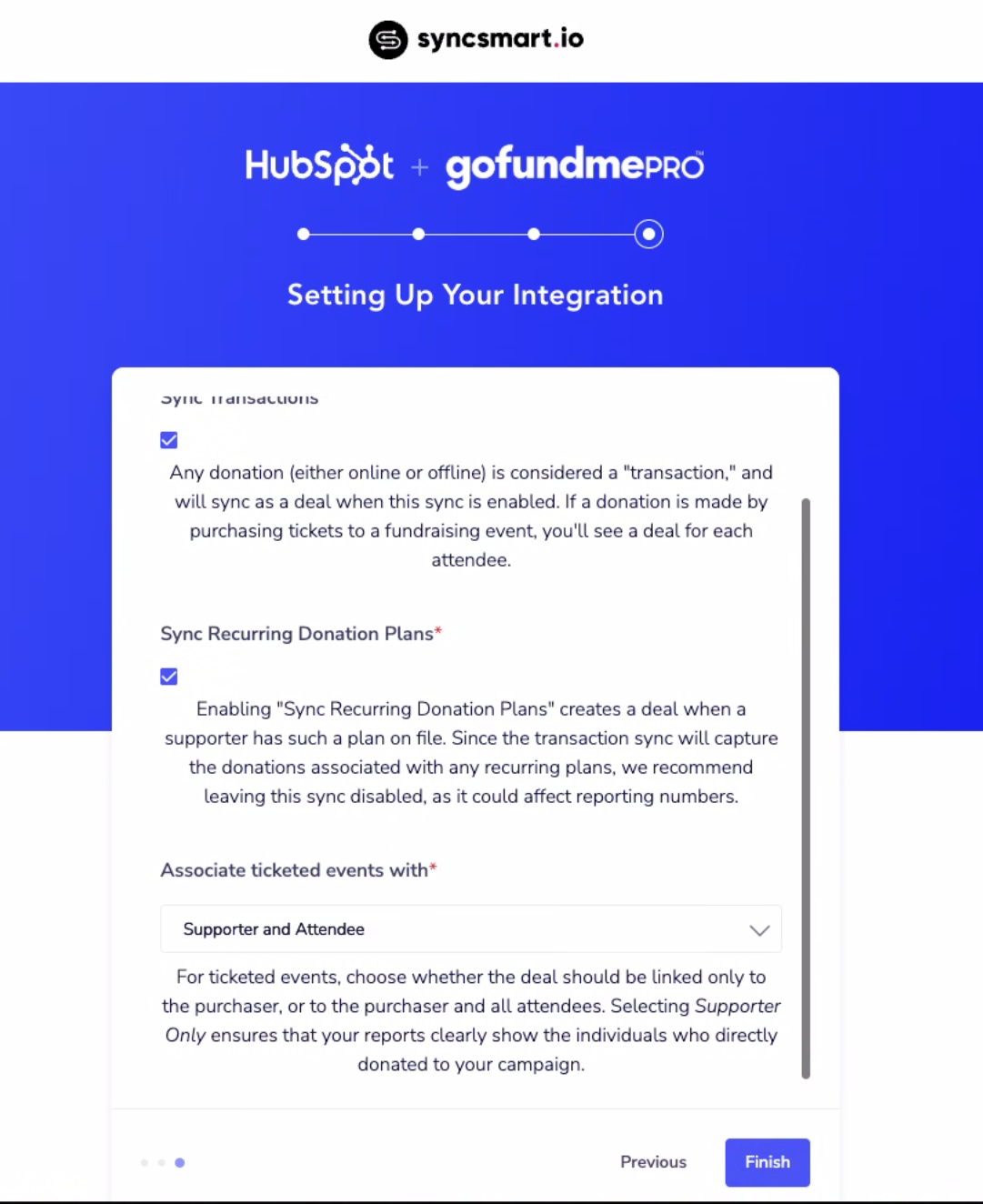
This step lets you choose which GoFundMe Pro records should sync into HubSpot.
Sync Transactions
When enabled, all donation activity will sync to HubSpot. Each donation will appear as a deal when applicable.Sync Recurring Donation Plans
When enabled, recurring donation plans will also sync. If you don’t want recurring plans included in donation totals, you may disable this option.Associate Ticketed Events With
If you use ticketed events, choose whether deals should be linked only to the supporter who purchased them or to all attendees.
After making your selections, click Finish to complete setup.
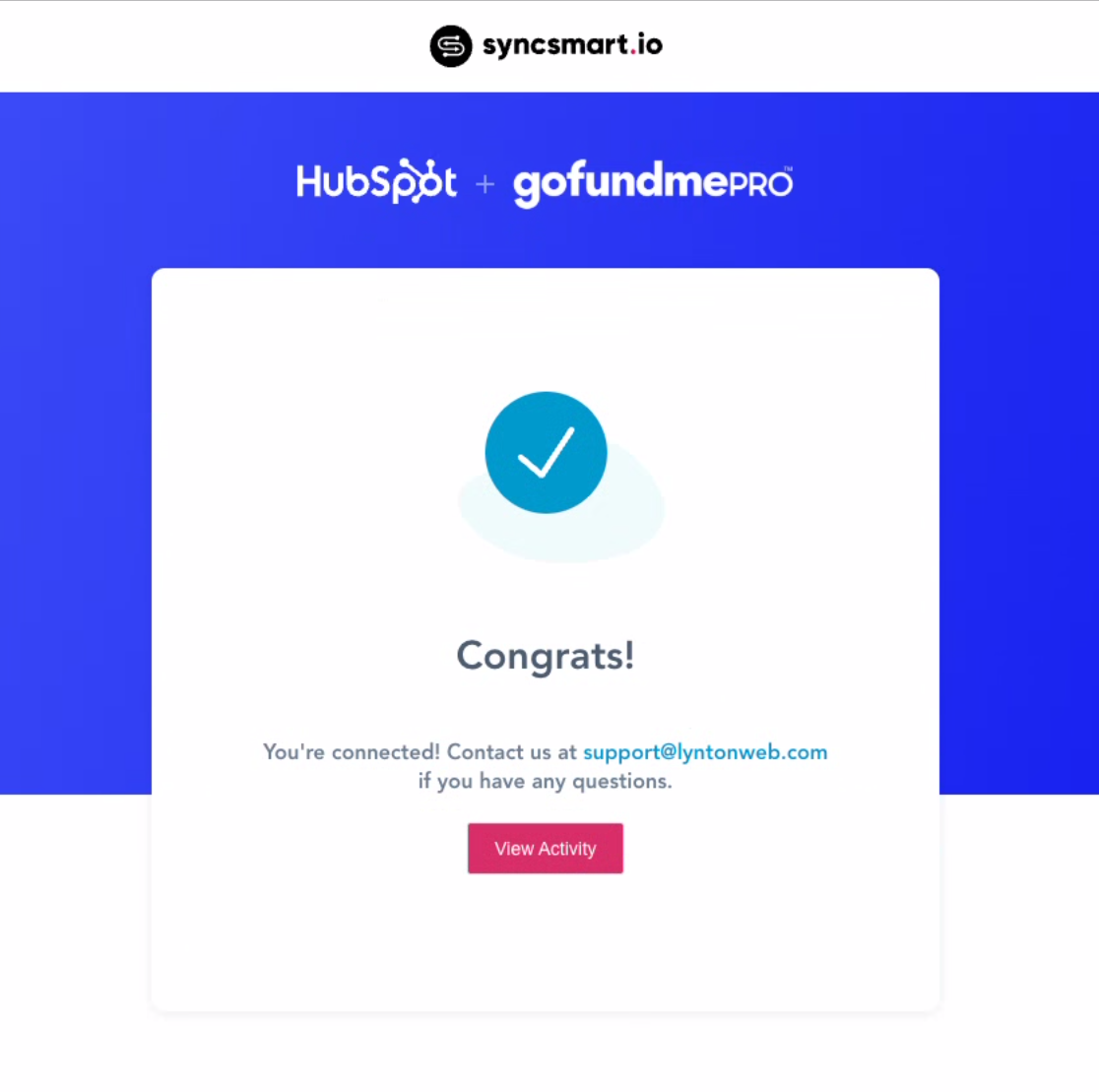
That’s it!
Your GoFundMe Pro integration is now fully set up.
Data will begin syncing shortly based on your selected preferences.
Supporters and donation records will appear in HubSpot as updates are processed.
Sync timing varies depending on volume, but most records begin showing within a few minutes.
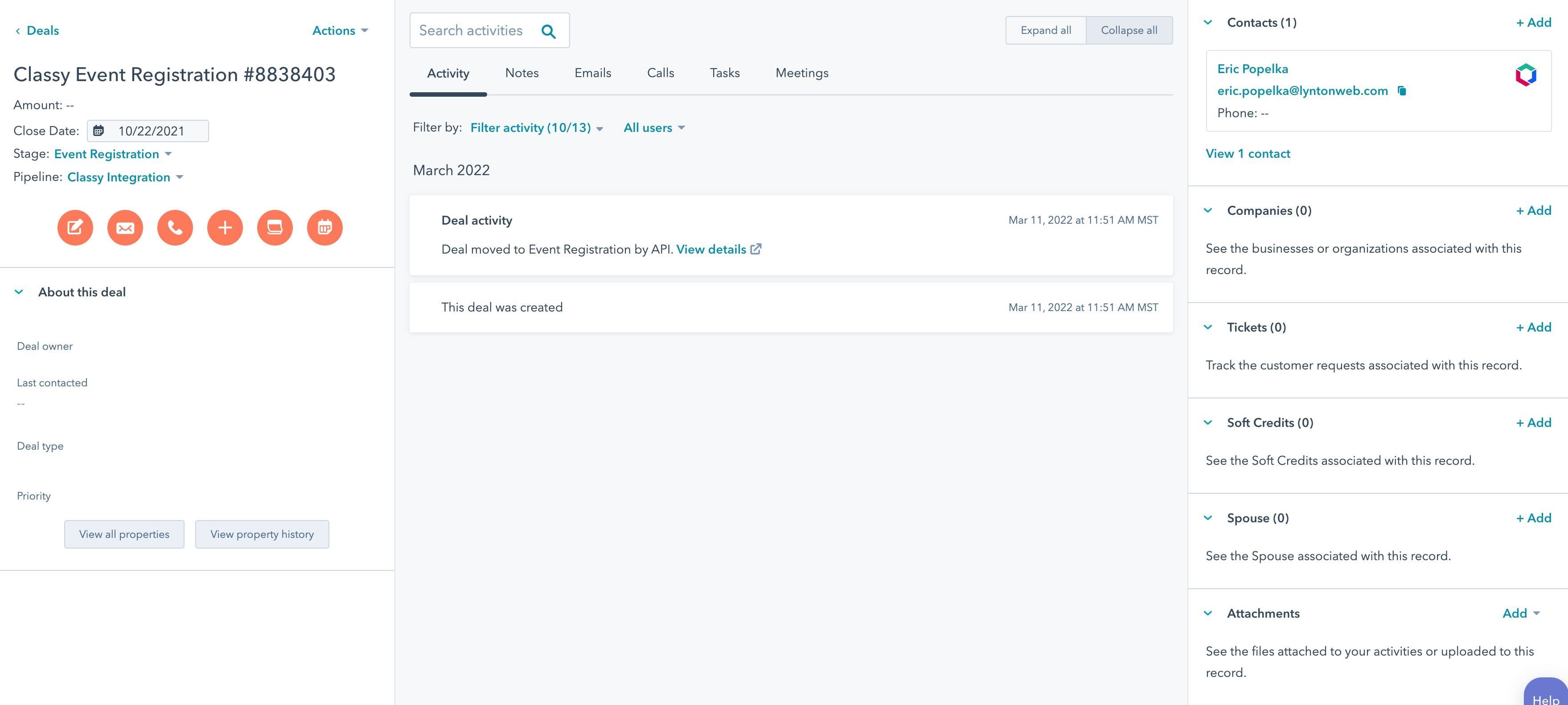
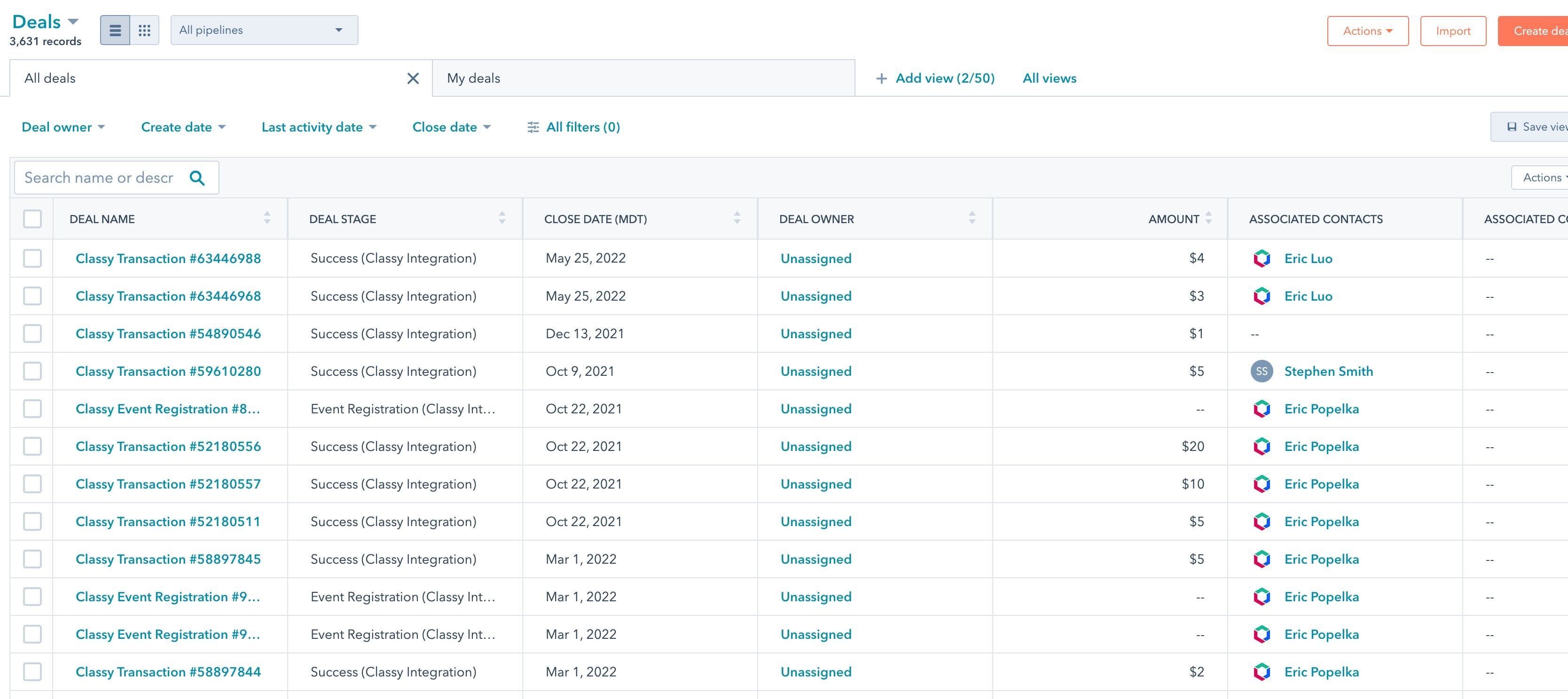
Give the integration 5 to 10 minutes to get everything set up and you should start seeing your supporters appear in HubSpot as contacts. Additionally, the integration creates a new deal pipeline specifically for GoFundMe Pro donations with the HubSpot portal.
Support:
If you need any help along the way, simply email [email protected]. We can't wait to help you with all your HubSpot integration needs.