How Do I Add A New Portal?
Last updated: October 16, 2025
Overview
Adding a new portal to your SyncSmart account allows you to configure and manage additional integrations under your existing organization group. Each portal represents a separate connection to a HubSpot, NetSuite, or ConnectWise environment.
This guide walks you through how to add a new portal, send an invite, and complete setup through the SyncSmart App.
Prerequisites
Before adding a new portal, ensure you have:
Access to app.syncsmart.io
Admin permissions for your SyncSmart group
A valid email address for the invited user (this email will receive the setup link)
Step 1: Log in to the SyncSmart App
Navigate to app.syncsmart.io and log in with your SyncSmart credentials.
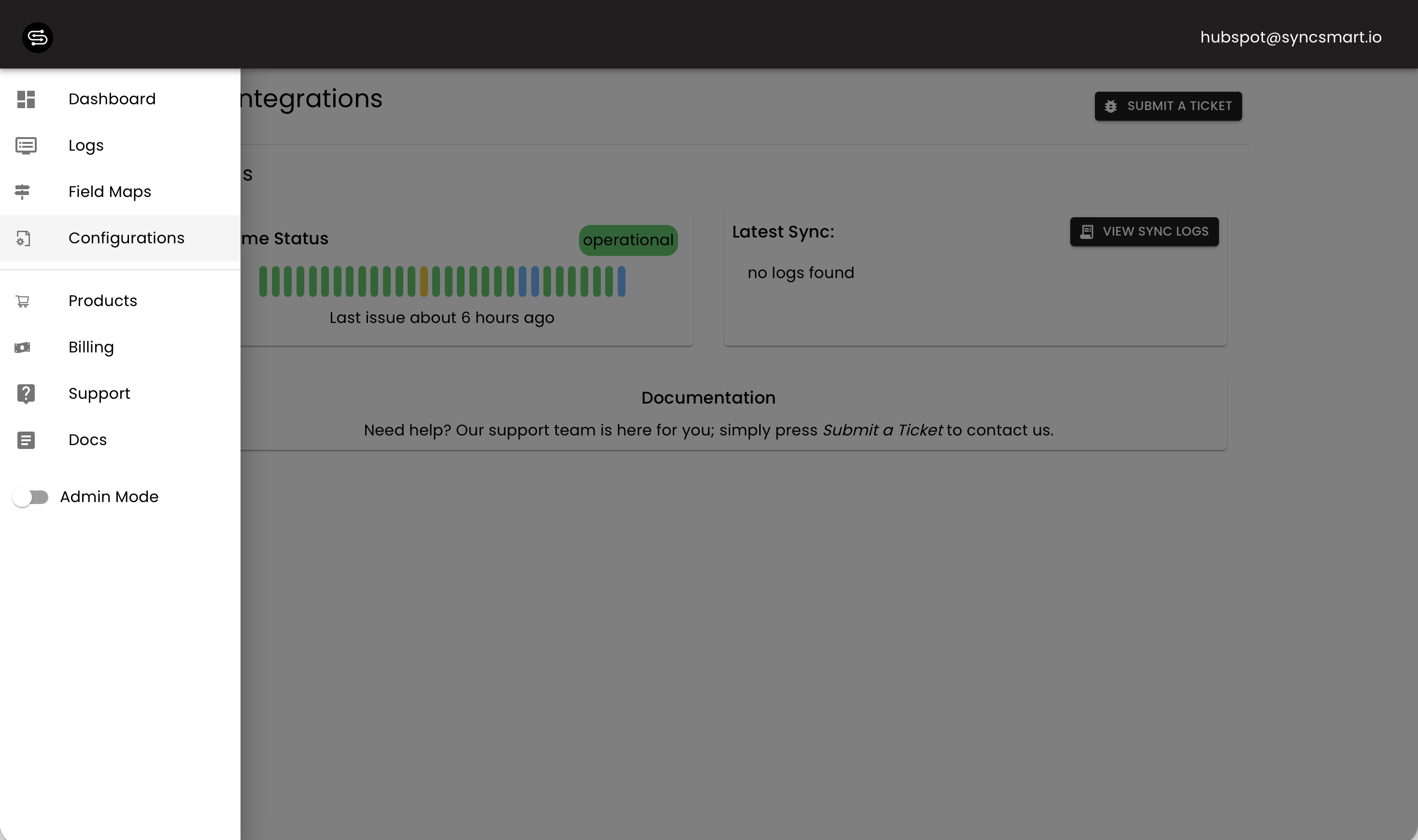
Step 2: Go to the Configurations Page
From the left navigation panel, click Configurations.
This page lists all your existing portals grouped by account.
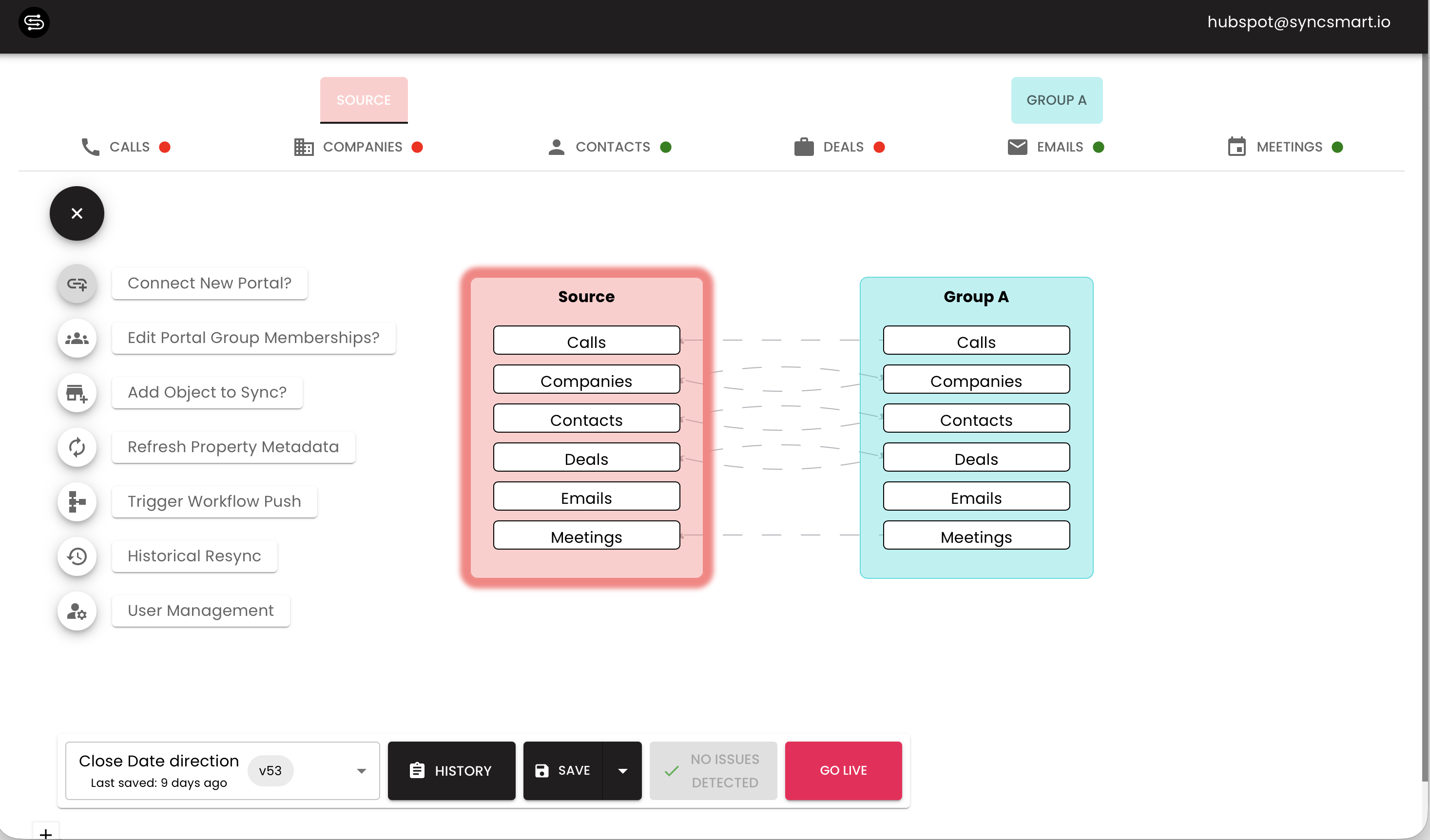
Step 3: Hover Over the “+” Icon
In the upper-right corner, hover over the plus sign (+) and select Connect New Portal.
This will open the portal invitation setup form.
Step 4: Choose the Group
Select the group where you want to add the new portal.
Then enter the email address of the user who should receive the invitation.
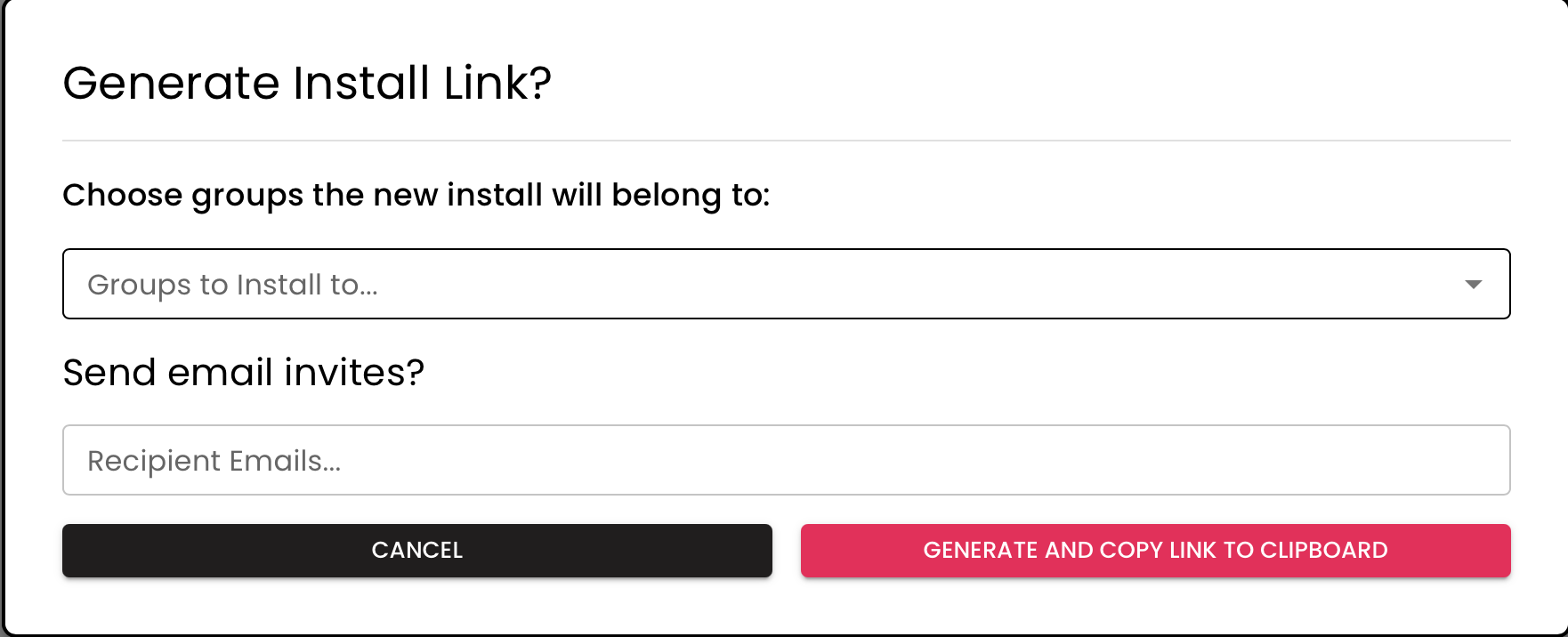
Step 5: Send the Invite
Click Send Invite Link.
An invitation email will be sent to the specified user with a link to complete setup.
Step 6: Choose a Plan
Once the invite is opened:
Choose your price plan
If you have a coupon code, enter it now to apply your discount
Step 7: Complete Setup
Follow the on-screen prompts to:
Authenticate into the connected systems (HubSpot, NetSuite, or ConnectWise)
Finalize configuration
Confirm successful connection
Once completed, your new portal will appear under the selected group within the Configurations page.
Additional Notes
You can manage multiple portals under a single SyncSmart account for unified access and billing.
If you experience issues with portal invites or plan selection, contact SyncSmart Support at [email protected].